

How to keep test evidence after an execution run in Tosca
Dinesh Gujarathi: Senior QA Engineer · Hands-on practitioner with Tosca
TL;DR: A green ExecutionList tells you how the last run went, but you can't use it as evidence. Tosca keeps results in several layers, and each one is lost at a different point: the next run, a cleanup job, a 90-day timer or an upgrade. So you have to set up evidence on purpose before you need it.
- Archive release runs on release day. The next run overwrites the ActualLog, logs can be cleared with one click, and nothing is archived unless you do it yourself.
- Know where screenshots live and how long they last. In 2026.1 they moved to a new Screenshot column, and File Service deletes them after 90 days by default.
- Most DokuSnapper problems are setup problems. The usual causes are a setting that isn't on, a misspelled parameter, a path that's too long or can't be written to, or a missing template on the agent.
- Automate your reports. Print them with TCShell or take the XML result file from the pipeline, so evidence is created with every run and nobody has to click Print.
A green ExecutionList shows how the last run went. Run the list again and Tosca replaces it with the new result.
Most of the questions colleagues bring me about results have nothing to do with how to start a test. They come afterwards. "Where did my screenshots go?" "DokuSnapper is switched on, so why is there no document?" "Can we get the report after every run without someone clicking Print?" And: "The manager wants the results from the release run three weeks ago. Can you send them?"
In each case the result was on screen once, and nobody decided where it should be kept.
The next run replaces the one before it
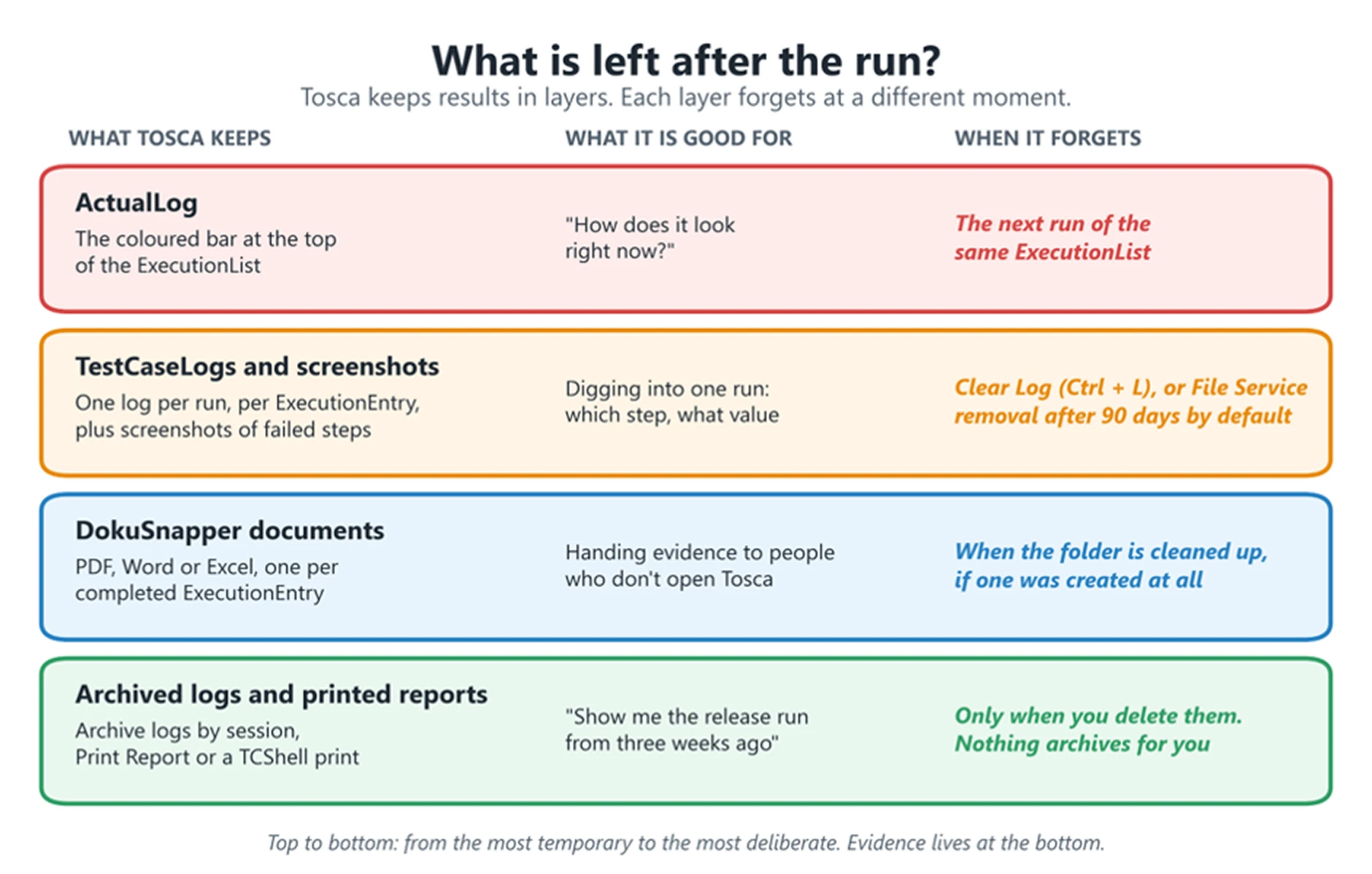
An ExecutionList holds more than one result. It has several layers, and each of them is cleared on its own schedule.
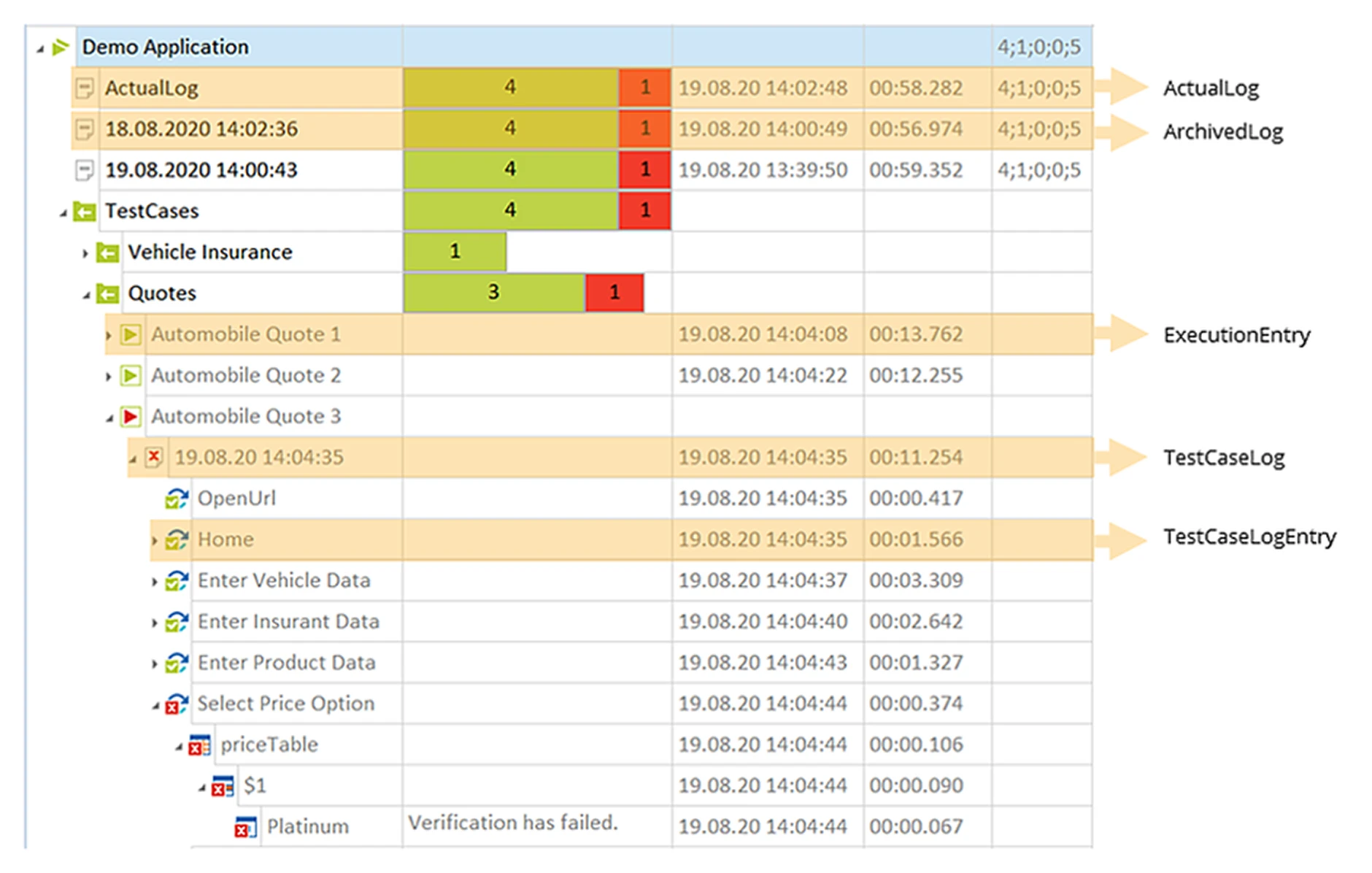
The ActualLog is the one you see first, with the colored bar at the top. The Tricentis documentation is very direct about it: when you run your ExecutionList again, Tosca overwrites the ActualLog with the latest results. That is by design. The ActualLog shows how things look right now, so once the next morning's run has finished, release day is gone from it.
Below it, every ExecutionEntry collects a TestCaseLog for each run, and runs that belong together share an ExecutionSessionID. These logs stay until someone clears them, which is easy to do: Clear Log, or Ctrl + L, is one right-click away, and if you use Tricentis File Service it deletes the screenshots on the file system as well.
Then there are archived logs, the only layer that is meant to stay. Archiving is manual. Tosca won't archive a release run for you.
I know the counter-argument. "It's all in the workspace, we can always look it up." Sometimes you can. But think about everything that has to go right for it to work: nobody cleared the log, nobody re-ran the list for a quick check, the 90-day timer hasn't run out, and the report layout still prints after the upgrade. That's a lot to rely on for something an auditor may ask for.
“Archive the release run on release day. Nobody remembers to do it later.”
Passed, Failed, Error and No result are four different statuses
Start with the colors, because people tend to read red as "the app is broken", and quite often that's wrong.
The Tricentis documentation defines them like this:
- Passed: the TestCase executed successfully.
- Failed: the system under test did not behave as expected.
- Error: something in the environment or the TestCase stopped the test from finishing, like a misspelt command or an exception.
- No result: the entry hasn't been executed yet.
A test that failed is news about the application. A test that couldn't finish is news about your setup. If you report both as "8 failures" to a project manager, you send developers looking for bugs that live in your automation. When I share a run, I split them out: failed means look at the app, error means look at us.
Your screenshots didn't disappear, they moved
This one comes up a lot after upgrading to 2026.1. "Tosca stopped taking screenshots." It still takes them.
As of 2026.1, the screenshots Tosca creates during a run sit in a new Screenshot column instead of the Detail column. If you're looking where you always looked, you won't find them. Add the column to your view and they're back.
Two more things decide whether there's a screenshot to find at all:
1. Tosca only takes them when you ask. Screenshots of failed TestSteps come from the setting "Make screenshot on failed test steps", under Settings > TBox > Logging > Screenshots. If it's off, a failure gives you a red line and no picture.
2. File Service has a timer. If your project uses Tricentis File Service, execution log data, including screenshots, is removed automatically after 90 days by default. Since 2024.2, that clock starts from when the log was created.
Note: If you use File Service and the View Screenshots option is simply missing from the Detail column, switching File Service off and on again for the project is a known fix. Back up the existing files first. Disabling it without a backup is how you lose the very screenshots you were trying to see.
The DokuSnapper document that never shows up
DokuSnapper is the closest thing Tosca has to an evidence pack out of the box. It writes a PDF, Word or Excel document with screenshots and data for the executed TestSteps. Run an ExecutionList and you get one document per completed ExecutionEntry.
When it doesn't work, there's often no error in the ExecutionList. The test passes and the document simply isn't there.
In my work, the reason is almost never DokuSnapper itself. It's one of these:
1. It isn't switched on where the test runs. "Enable Snapper" lives under Settings > TBox > DokuSnapper. For runs on agents, set it with test configuration parameters, so it goes wherever the test goes.
2. The parameter name is slightly wrong. If you spell a DokuSnapper parameter wrongly, TBox treats it as your own self-defined parameter and ignores it as a setting. You get no error and no document. My habit: in the Settings dialog, right-click the setting and use Copy path to clipboard, then paste that as the parameter name, so nothing is typed by hand.
3. The path can't be written to. The folder has to exist and be writable by the user running the test. Temporary folders and network drives are a common cause of trouble. So is an extra space at the end of the path, which is very hard to spot.
4. The path is too long. DokuSnapper can use the TestCase name in the file name. When folder plus file name gets past roughly 237 characters, you can see "A generic error occurred in GDI+". The message says nothing about paths, so it's easy to chase the wrong cause.
5. There's no template on the agent. On an agent machine, DokuSnapper needs its template document. If it isn't in the default templates folder, point to it with the TBox_DokuSnapper_Template parameter.
6. MS Office or Classic modules issues. "No MS Word installed" sounds like a missing MS Office license. Sometimes it’s correct and sometimes It shows up when Classic Modules are involved, because they try to create the old .doc format. The fix is moving to TBox Modules, not installing Word.
When none of these explains it, open the Log Viewer while you reproduce the run. A permissions problem or a mistyped folder shows up there in plain words, even when the ExecutionList stays green.
Note: If you set the Storage location type to Tosca, the document isn't saved as a file in your folder. It's attached in the workspace, and there's no one-click way to open it from the log. Right-click the execution log, use Search all > References, then open or save the AttachedExecutionLogFile. If you just want a file in a folder, keep the storage type local.
How I keep evidence on purpose
Once you know how each layer forgets, keeping evidence is a handful of deliberate habits.
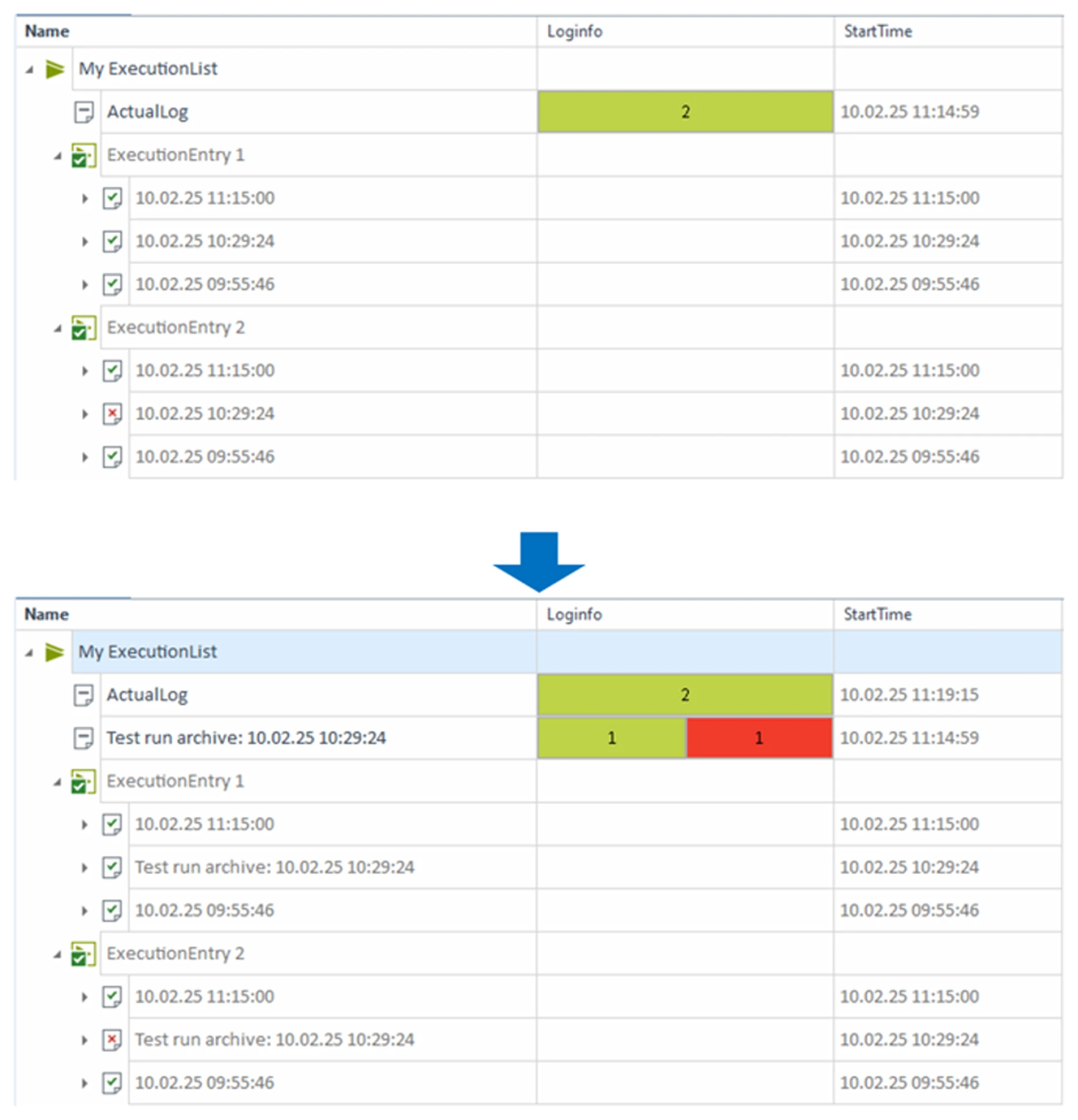
Archive the runs that matter. After a release run, right-click the ExecutionList and choose Archive logs by session, then give it the ExecutionSessionID of that run and a name people will understand later, like the release number. Tosca moves that run's logs into an archive and leaves the others alone. Then the next quick re-run can overwrite the ActualLog all it likes.
Decide where DokuSnapper documents live. One folder per ExecutionList or release is easier to hand over than one folder for everything. If you need a different path per TestCase, you can create a test configuration parameter on the TestCase with the copied setting path and your own value.
Turn DokuSnapper off for ScratchBook runs. By default it documents every run, including the quick ones in ScratchBook. One way I like: switch "Enable Snapper" off in the settings and switch it on with a test configuration parameter on your Execution folder. Then only ExecutionList runs create documents, and the evidence folder holds only real runs.
Keep secrets and noise out of the document. The AvoidSnapper parameter, set to True on an Engine 3.0 Module or ModuleAttribute, leaves it out of the recording. That's useful for login screens, and it also keeps large runs from producing huge documents.
Reports after every run, without anyone clicking Print
The request I hear most often from managers is "Can we get the report automatically?"
In Tosca Commander you print by right-clicking the object and choosing Print Report.... The same thing works from the command line with TCShell, so it can run straight after an execution:
1. Set the Report Definition's PrintOutputFormat property to NONE.
2. Open the workspace in TCShell.
3. Go to the object that holds the data and run the Print Report task with a target file, for example a PDF named after the release.
Since 2024.1, you no longer need to edit the TCShell config file to print. Older guides online still tell you to, so check the date on whatever you're following.
If your runs come from a pipeline, the Execution Client can write an XML result file. It has one block per ExecutionList with the counts of passed, failed and skipped TestCases, then each TestCase with its result and failure details. You can hand that file to your CI tool, so the build result and the test result come from the same place. There's a good Jenkins walkthrough on ShiftSync for the pipeline side, linked at the end. The results file is the part worth keeping next to your release notes.
Note: Report Designer is built on List & Label, and Tosca moves to List & Label 31 in 2026.1. If you upgrade from 2023.2 or older, the Tricentis documentation says you have to upgrade your custom reports. Print your main reports on a test workspace before the upgrade weekend.
What I set up before the first run, not after the audit
Each of these takes a few minutes to set up.
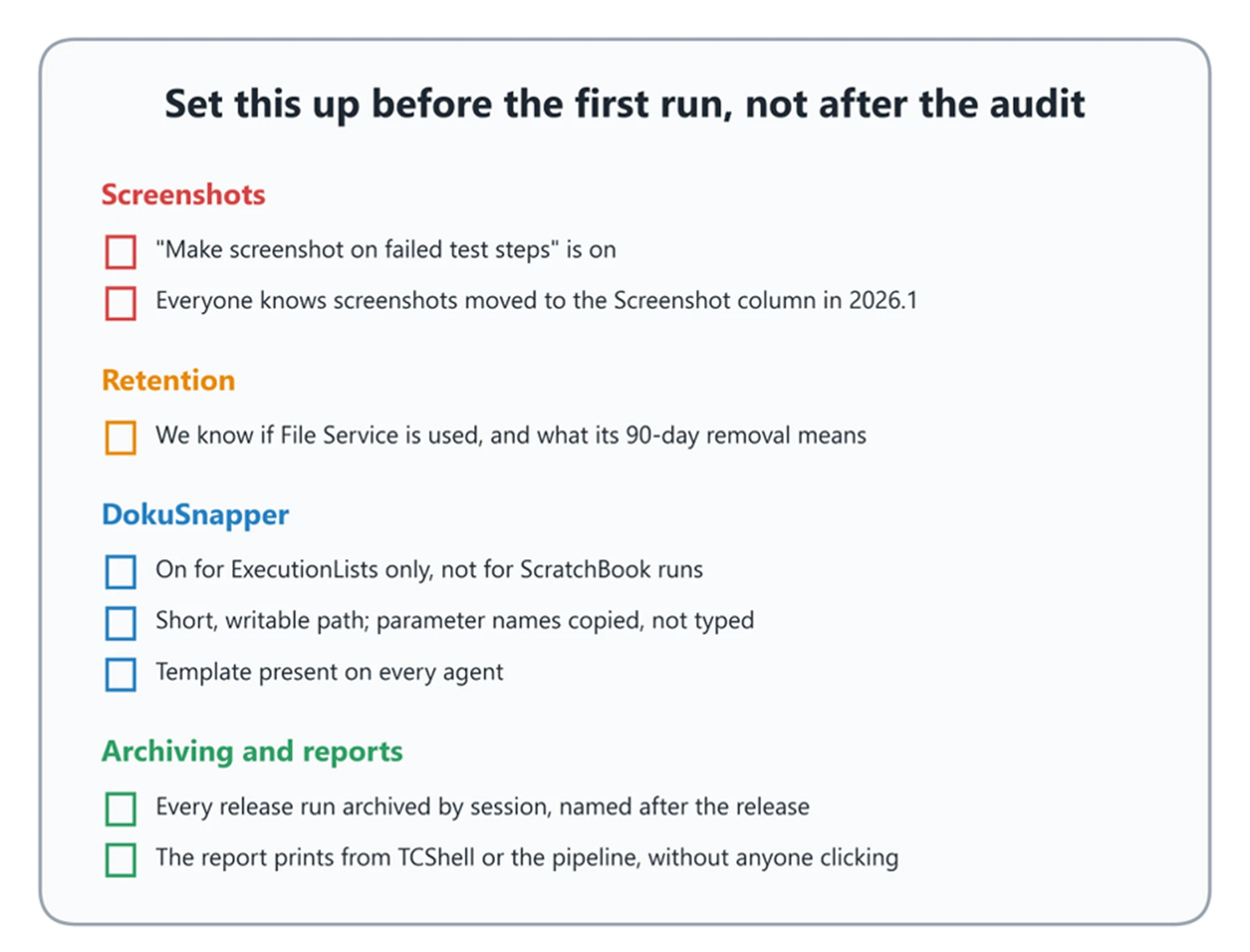
- Screenshots: "Make screenshot on failed test steps" is on, and everyone knows about the Screenshot column in 2026.1.
- Retention: we know whether File Service is in use and what its 90-day removal means for us.
- DokuSnapper: switched on only for ExecutionLists, with a short path that can be written to, parameter names copied rather than typed, and the template on every agent.
- Archiving: every release run is archived by session, named after the release.
- Reports: the report prints from TCShell or comes out of the pipeline as a file, without anyone remembering to click.
Make the evidence part of the run
When someone asks for proof a few weeks after a release, the real question is whether anyone can still show the test passed. By then the ActualLog has been overwritten, and the screenshots may have gone with a cleared log or with the 90-day removal.
So I set up the evidence together with the run: archive the release run, keep the DokuSnapper documents in a known folder, and let the report print itself.
There's a difference between:
· A test that passed, and
· A test you can still show passed a month later.
Old saying: "If it isn't written down, it didn't happen." My version for testers: "If you can't show it, you can't prove it passed."
How do you keep your Tosca evidence today? Archives, DokuSnapper, reports, or something smarter I haven't thought of? I'd love to hear it in the comments.
Happy learning.

