
Integrate Tosca with Jenkins (CI/CD)
In this article, you will learn how to integrate Tricentis Tosca with Jenkins to automate test execution as part of your CI/CD pipeline. You will walk through the prerequisites, set up the required components, configure Jenkins, and create a pipeline that triggers Tosca test executions using the Tosca Execution Client.
About author:
Syed Rafi is a QA Automation Engineer with 7+ years of IT experience, including 4.5+ years of specialized expertise in Tricentis Tosca Automation across Guidewire PolicyCenter, Salesforce (SFDC), Web, Desktop, and Mainframe applications. Experienced in the US Property & Casualty (P&C) Insurance, Healthcare Insurance, and Waste Management domains, with strong expertise in Personal Auto and Commercial Lines business processes.
Prerequisite
Before integrating Tosca with Jenkins, ensure that Tosca Distributed Execution (DEX) is installed and configured successfully.
Step 1:
Install Jenkins using this link: https://www.jenkins.io/
Refer this YouTube link for Jenkins Installation and User Registration: Jenkins Installation and User Activation
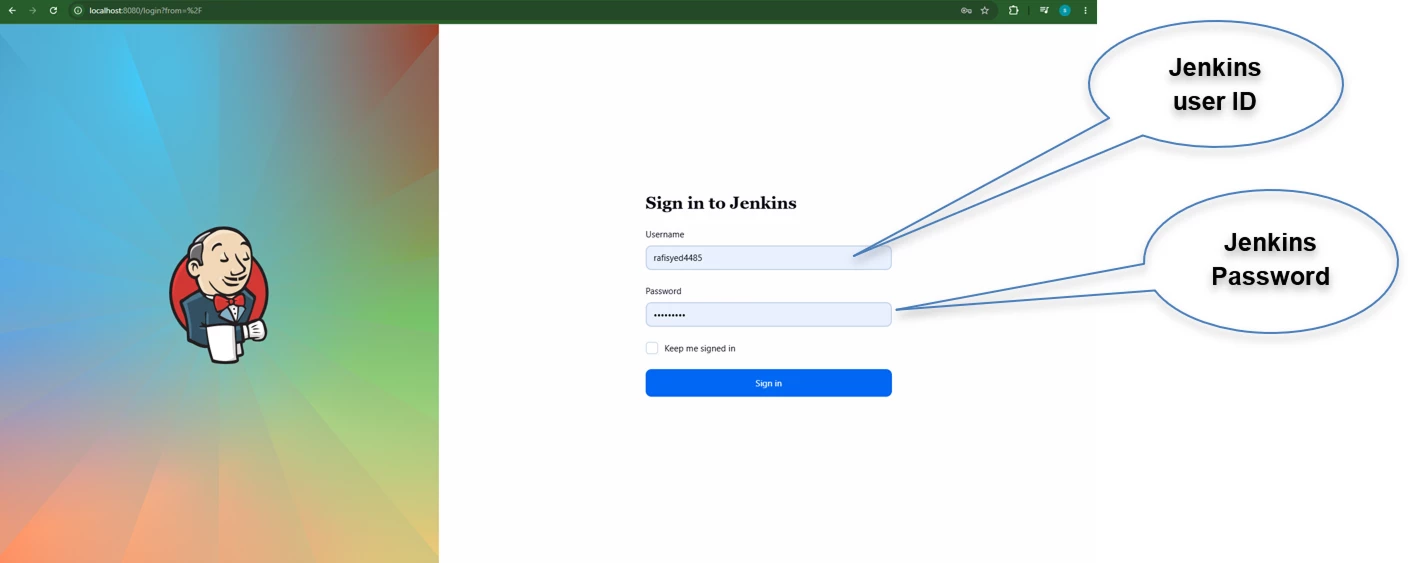
Step 2: Login with the Jenkins User ID and Password.
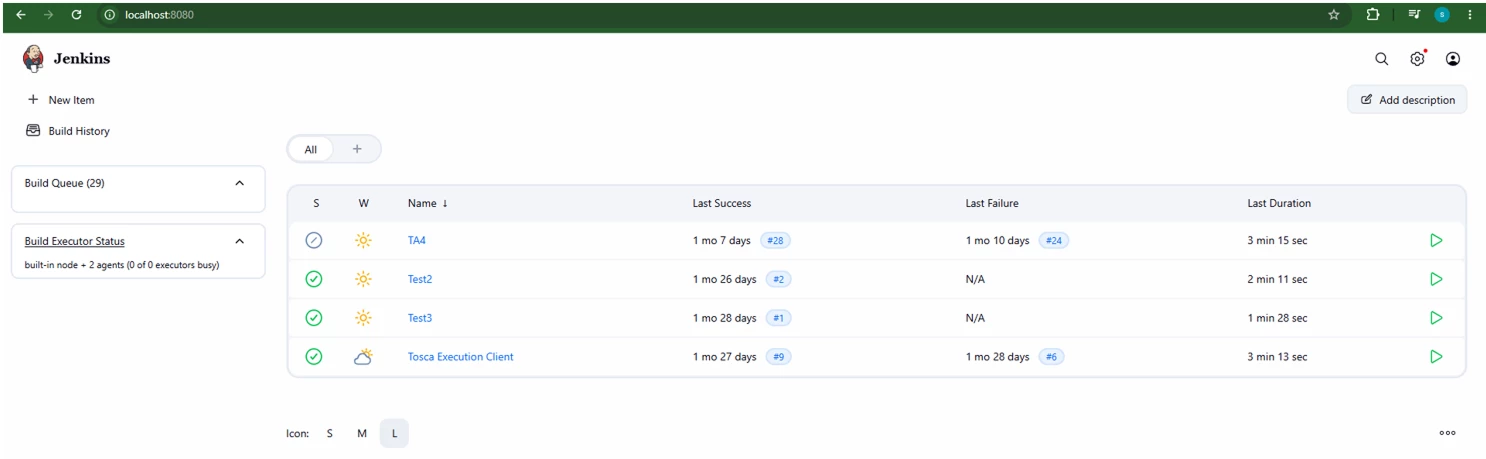
Step 3.1: Navigate to Settings Page from Home page and Create a Node
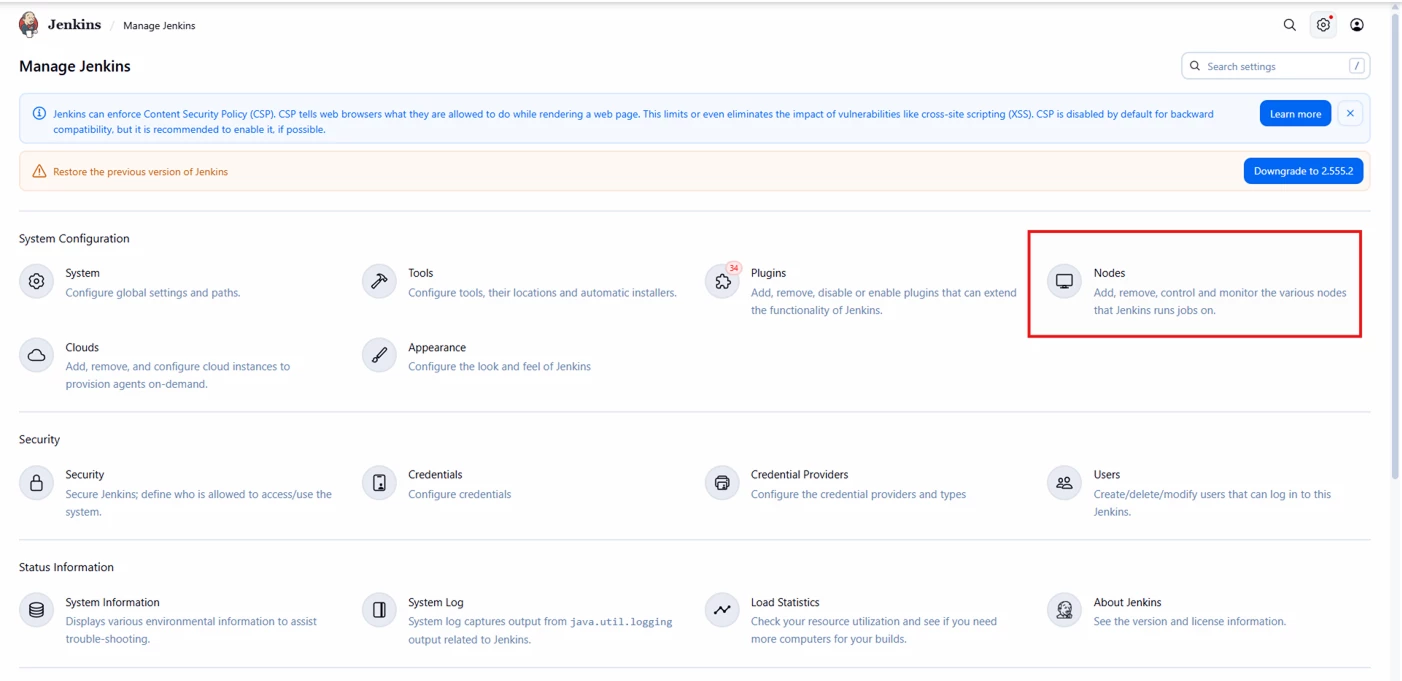
Node Creation : (Agent)
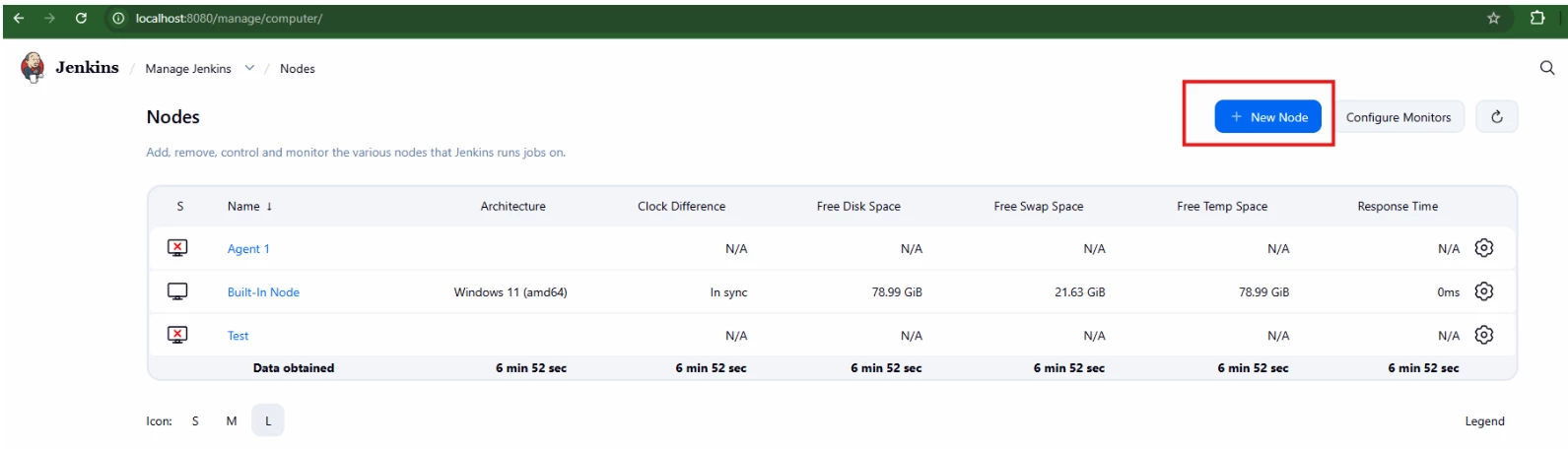
Step 3.2: Click on New Node
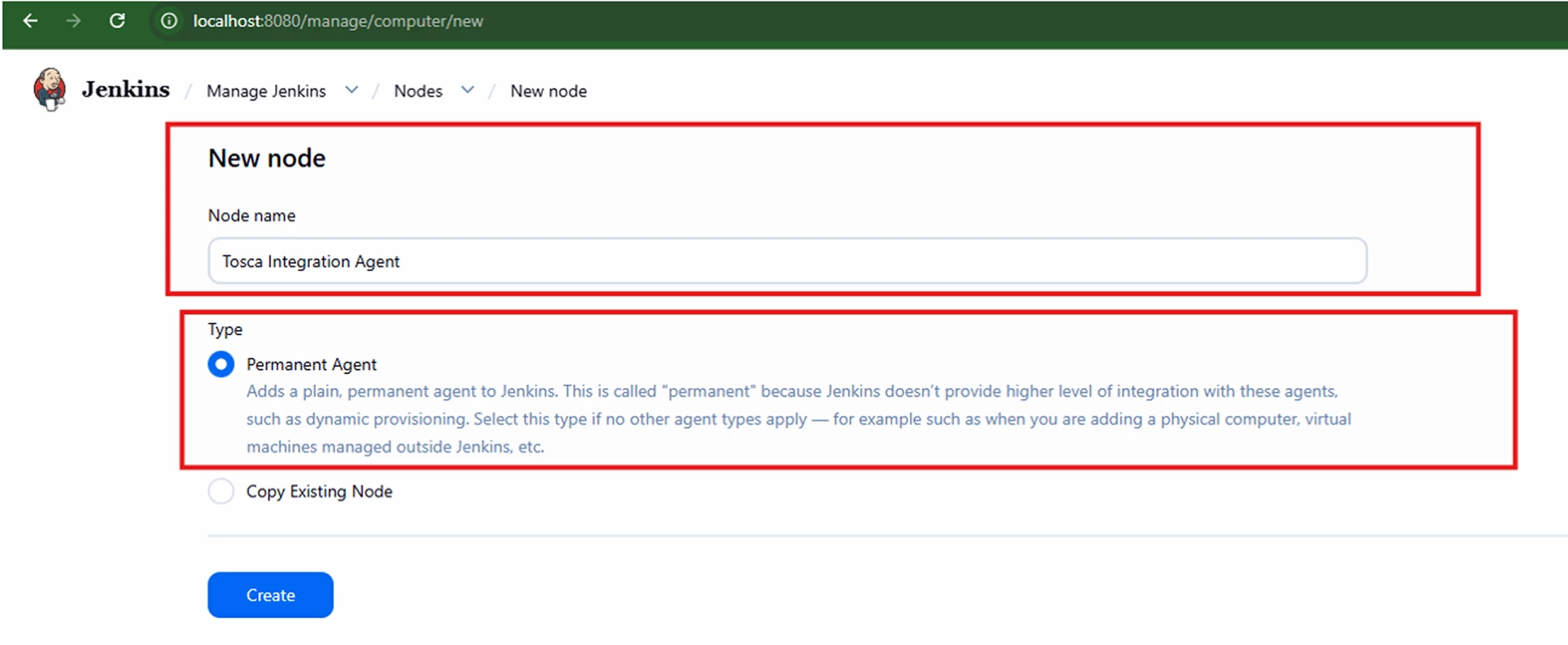
Step 3.3: Enter New Node Name and Select Type as Permanent Agent
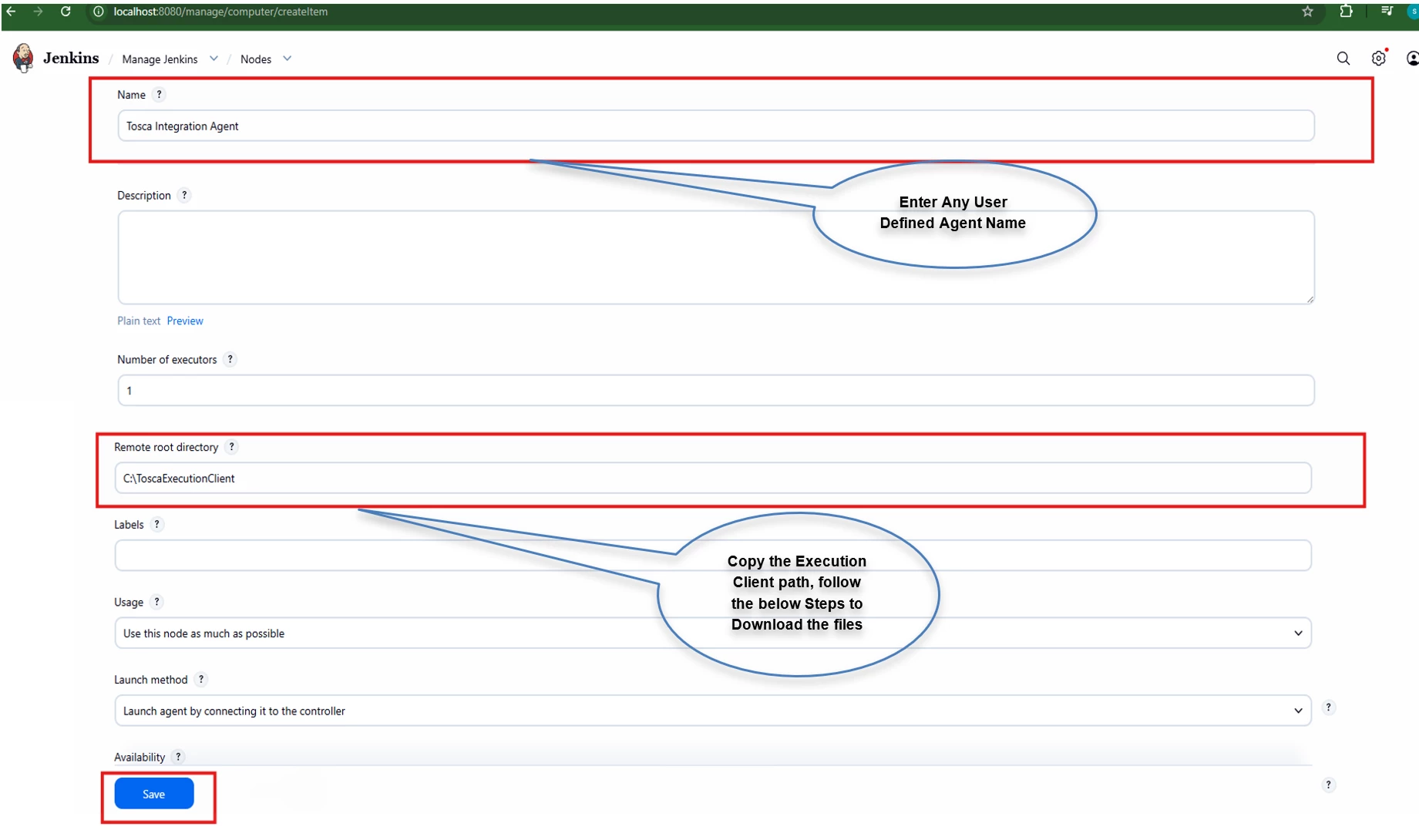
Step 3.4: Enter the Directory path as C:\ToscaExecutionClient and Save
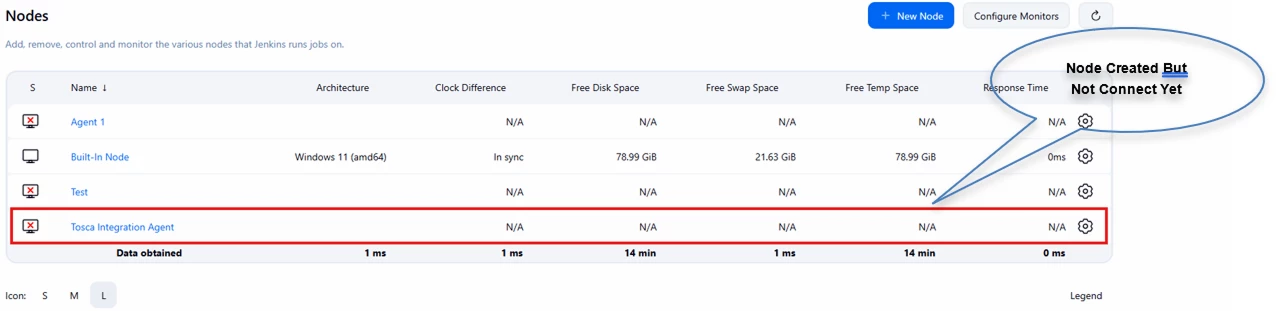
Step3.5: Node has to be created successfully
Step 4.1: Download Tosca Execution Client by navigating below link
https://github.com/Tricentis/ToscaExecutionClient
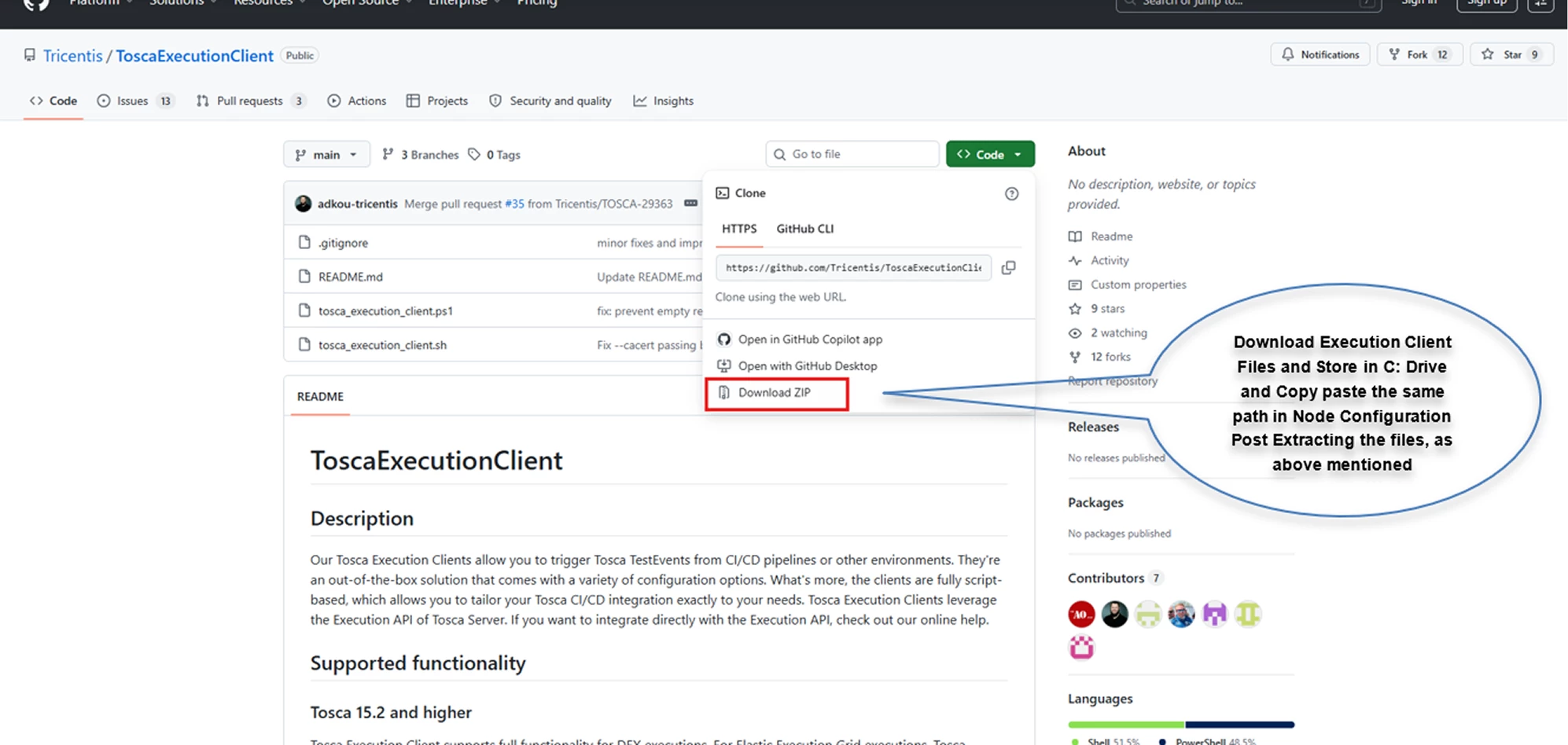
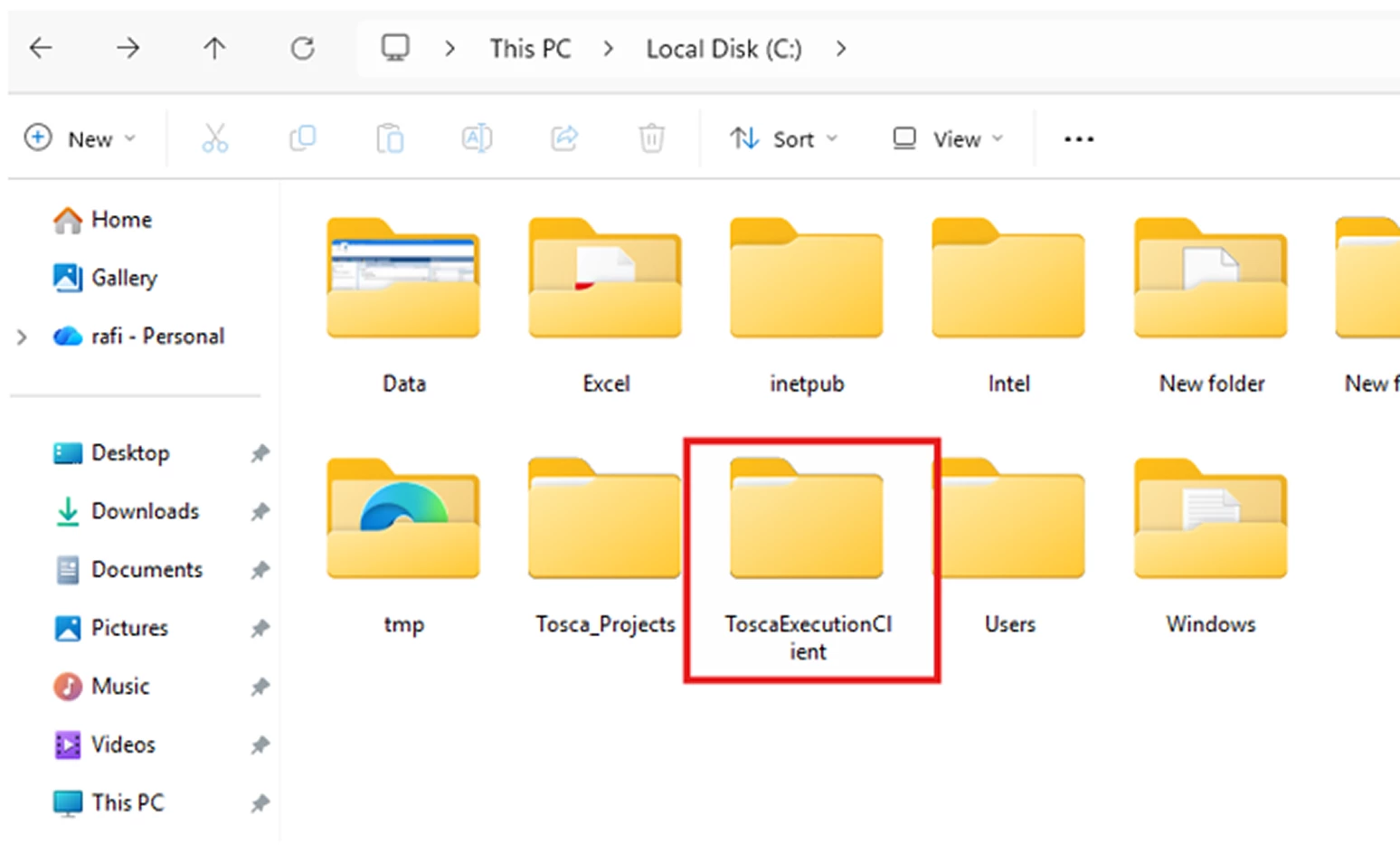
Step 4.2: Extract the file and move the folder to C: drive and rename it as ToscaExecutionClient
Step 5: Navigate to Jenkins Agent and copy the Windows command and run in the command prompt and Agent should be connected to the Local System Successfully
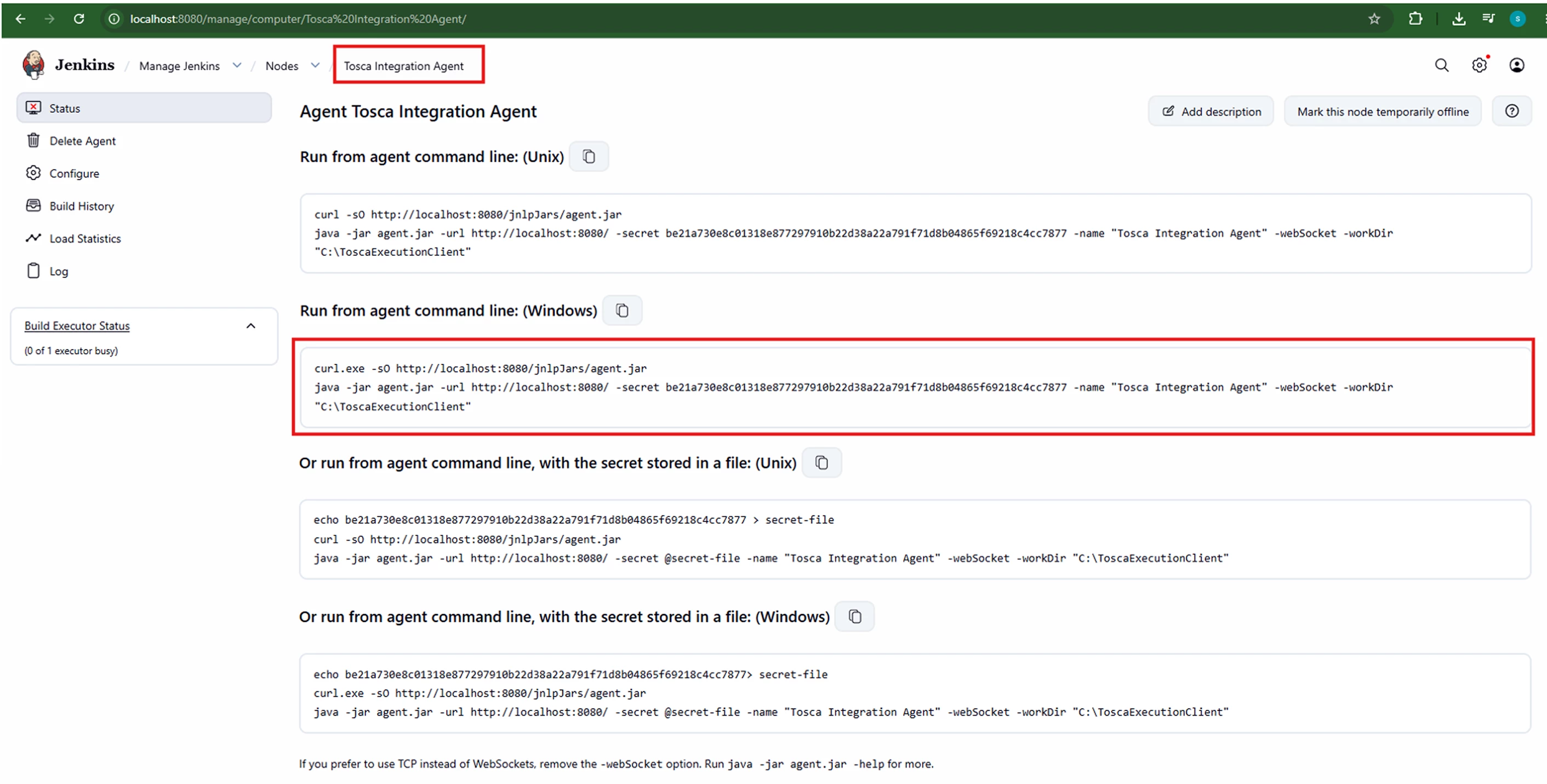
The highlighted field >> Run from agent command line: (Windows) >>
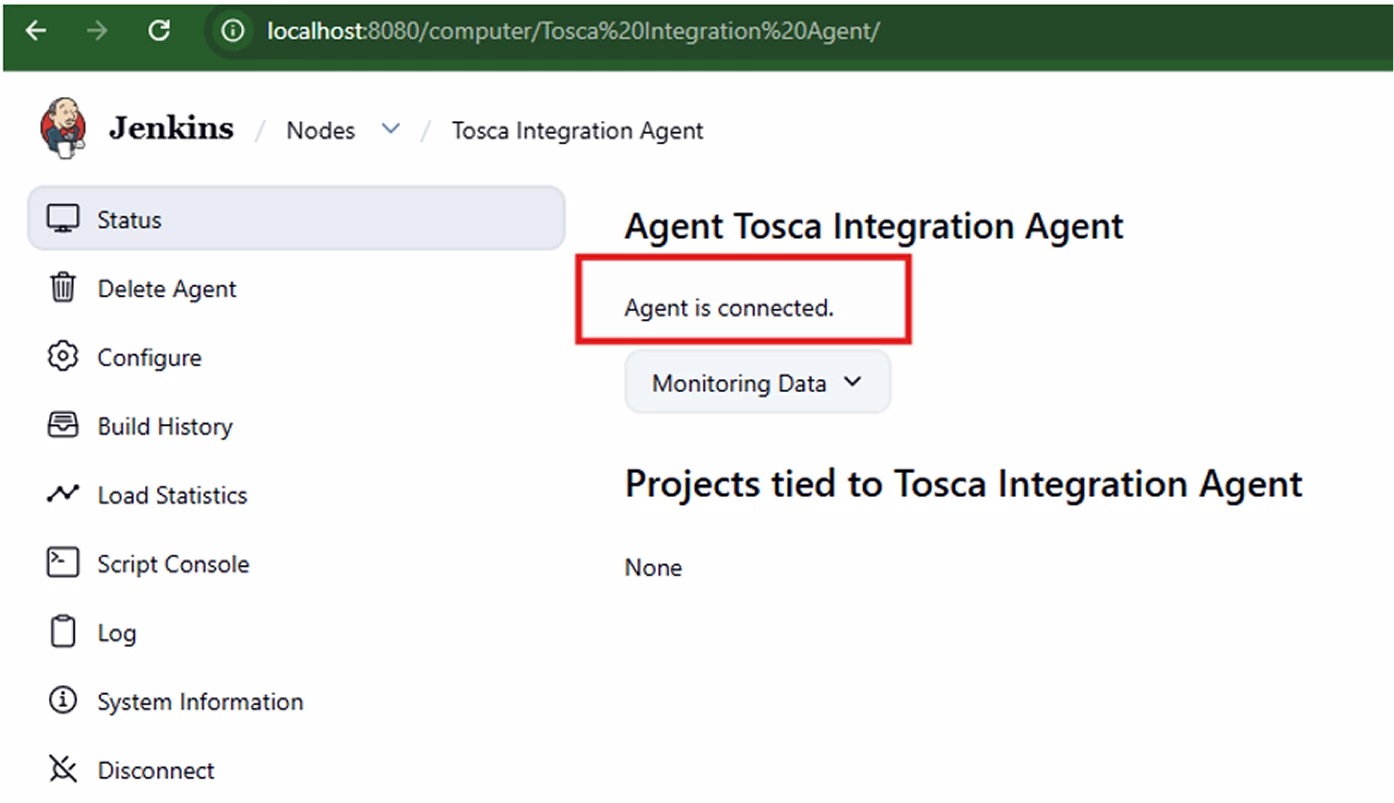
It will auto populate after node configuration. Copy this command and open cmd in agent machine and run as admin, then the agent will be successfully connected to Jenkins as shown below.
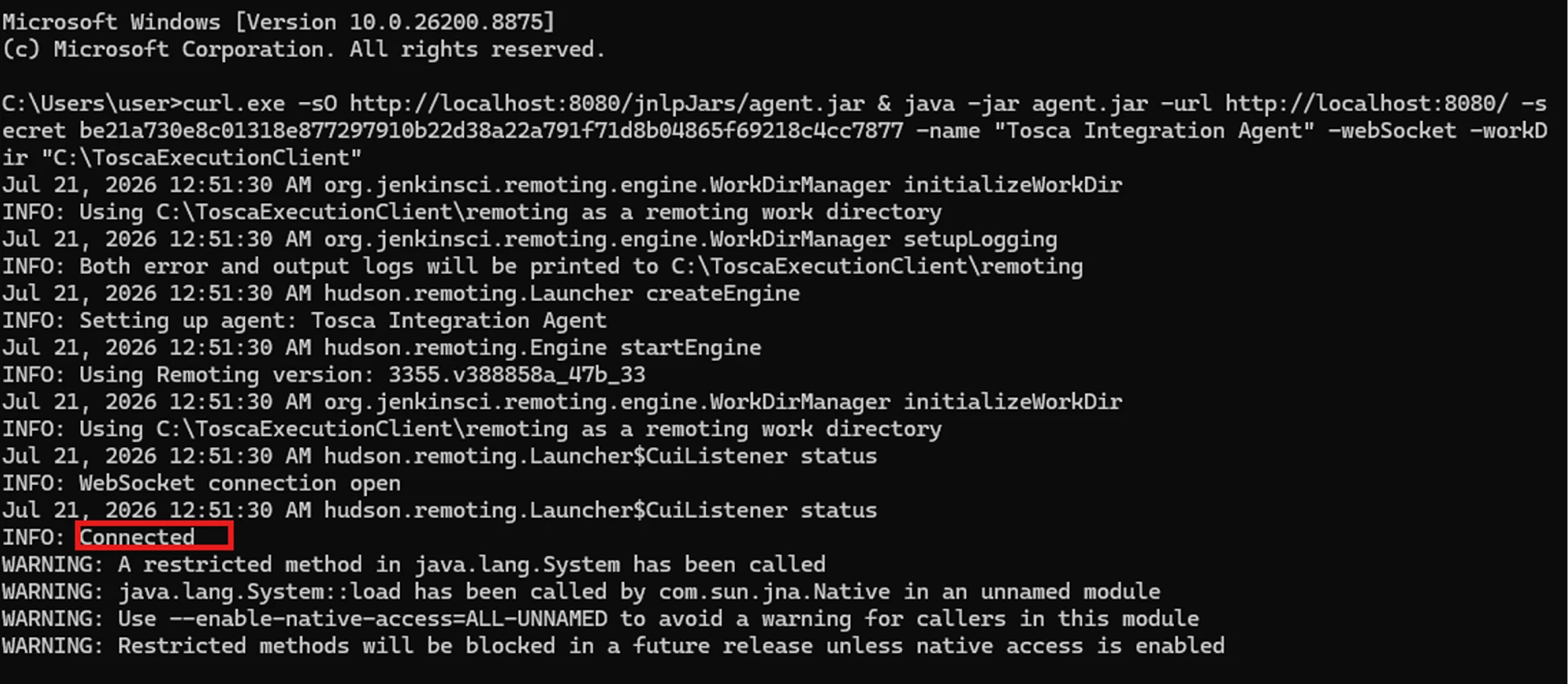
Step 6: Navigate to Jenkins and Verify whether the Agent is Connected
Step 7.1: Create a Pipeline
Step 7.2: Click on New Item
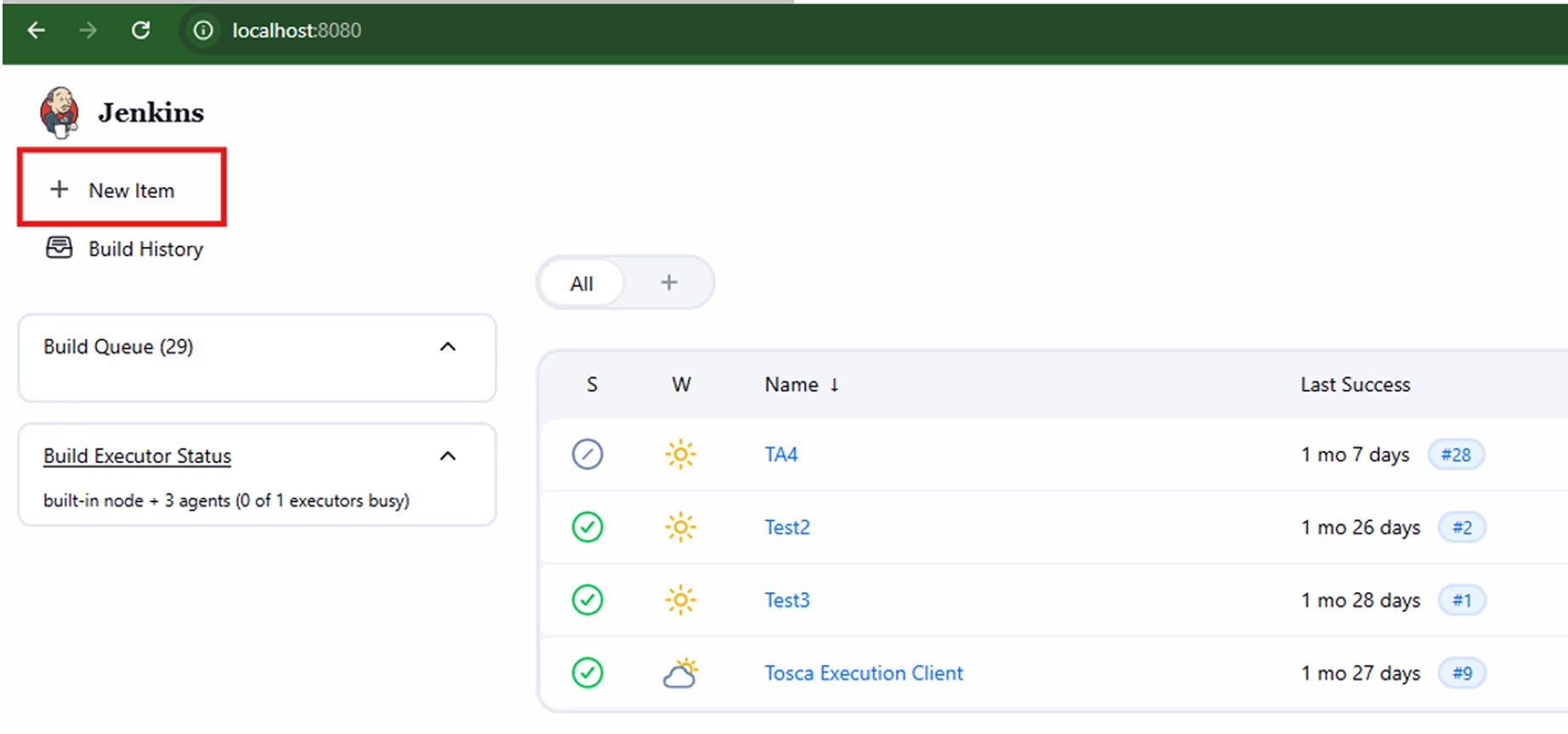
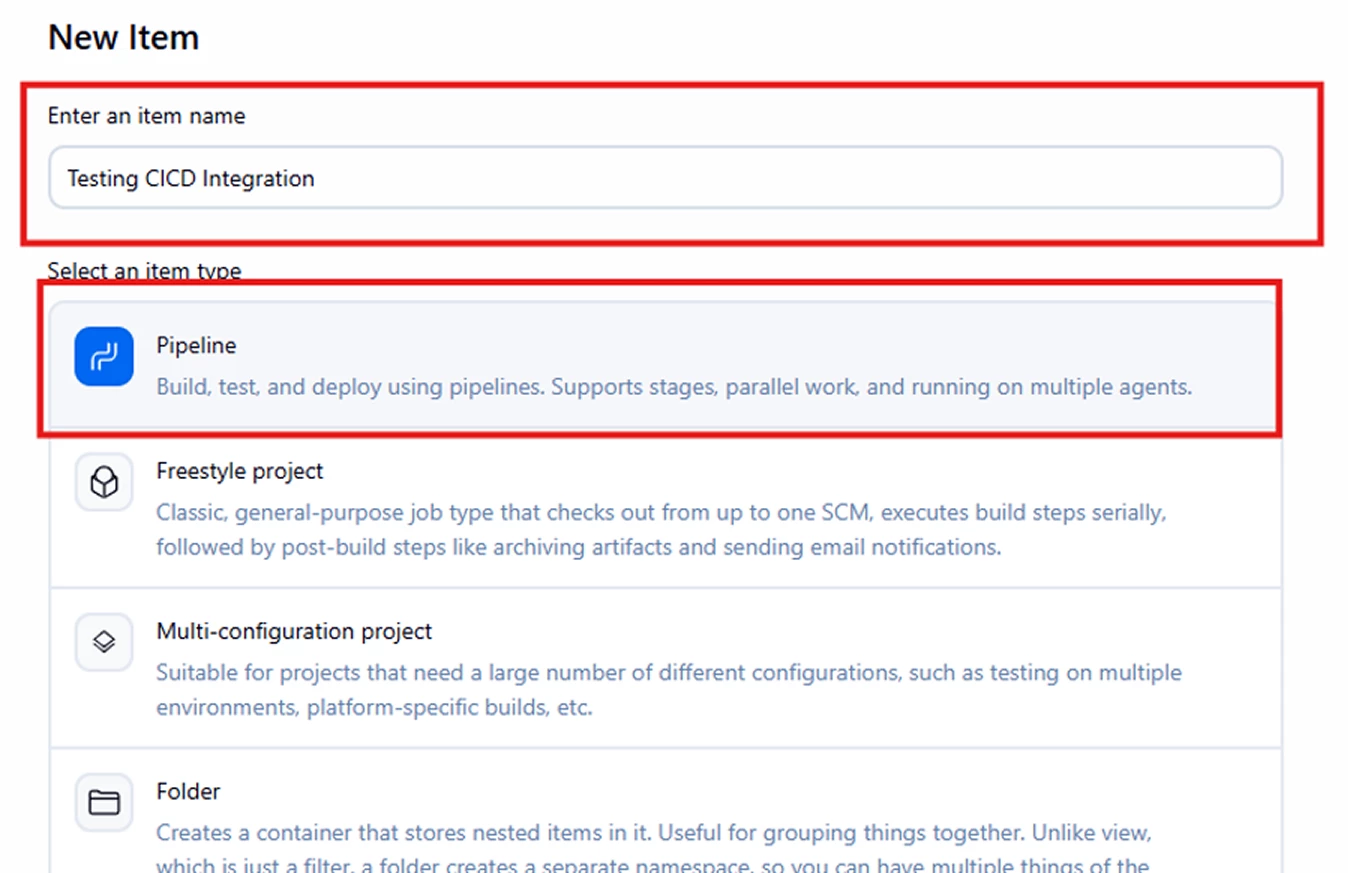
Step 7.3: Enter Pipeline name and Select Pipeline
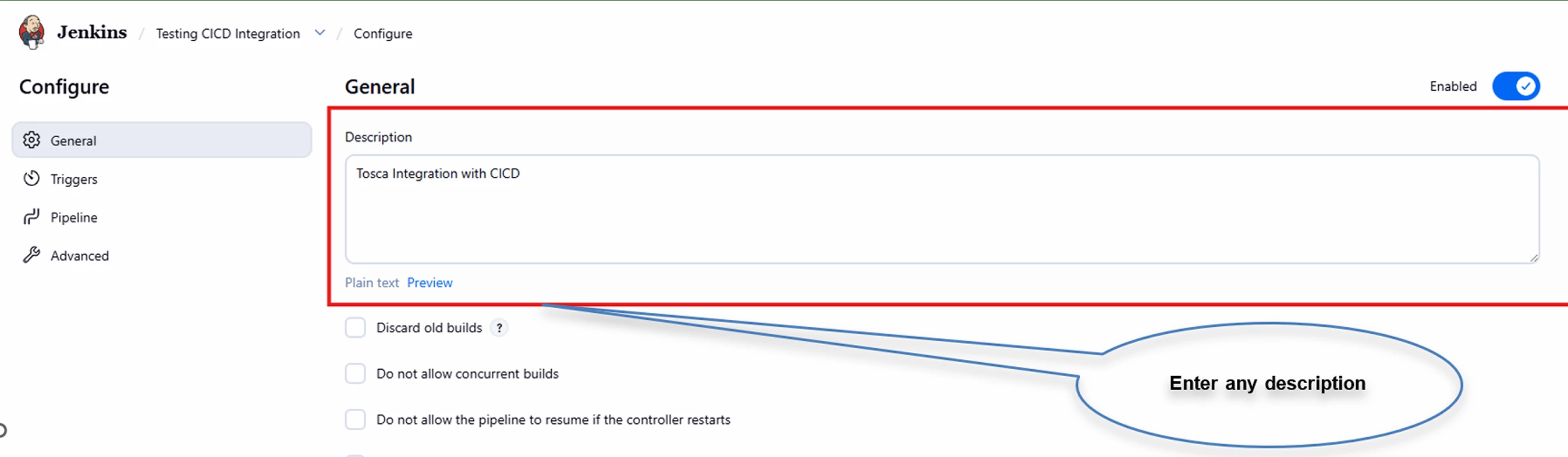
Step 7.4: Enter Valid Description
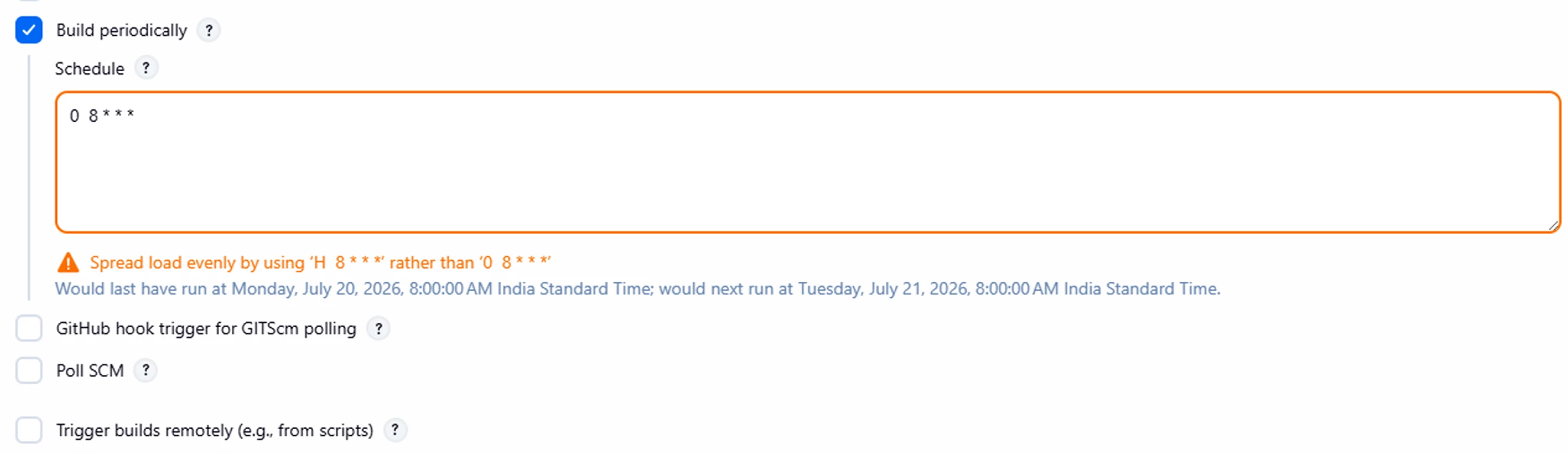
Step 7.5: Select Build periodically and Enter the Execution Frequency
Step 7.6: Select Pipeline Script and Paste below code modify the script according to your requirement
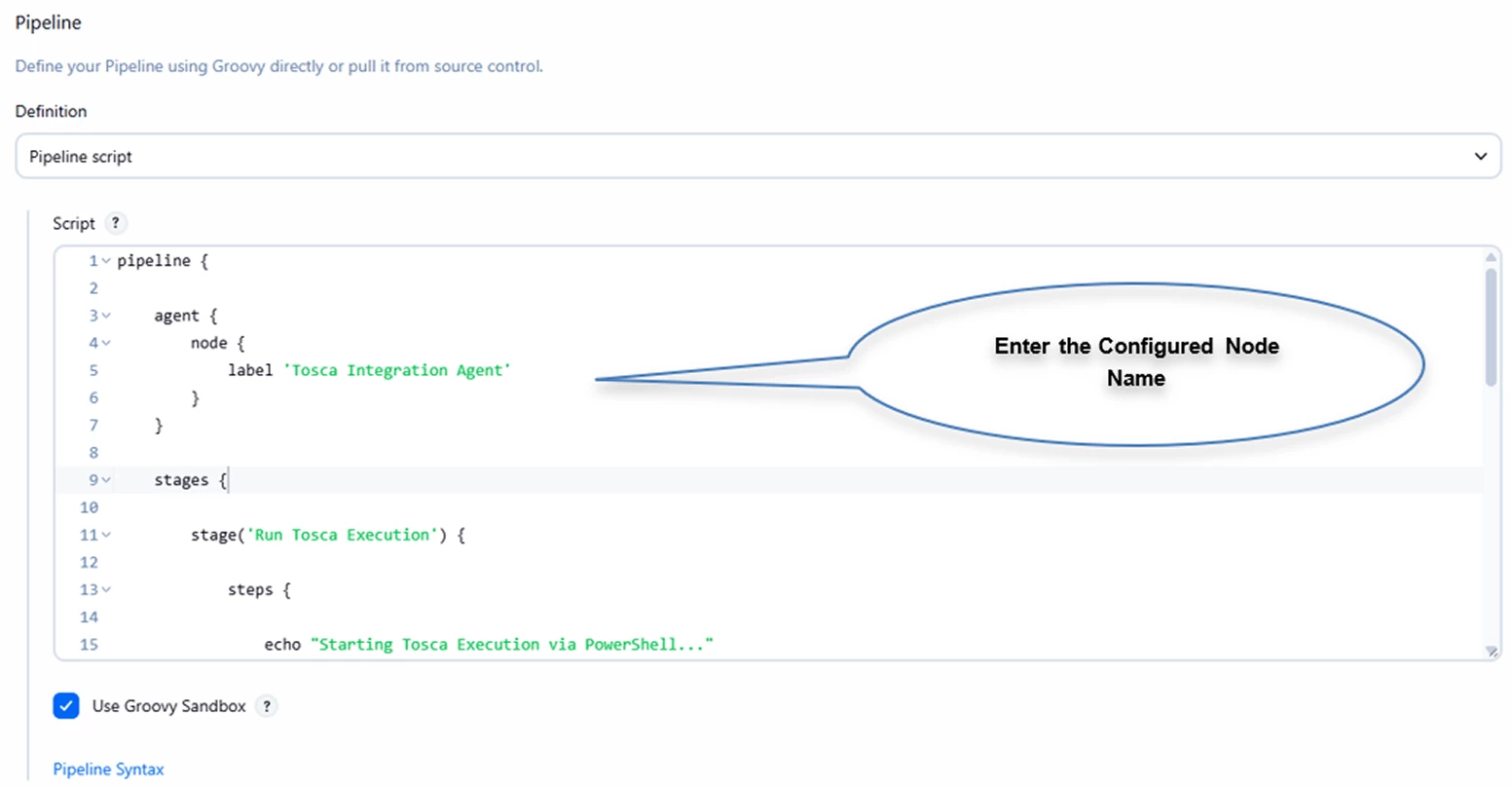
CODE:
pipeline {

    agent {
        node {
            label '<Node Name>’
        }
    }

    stages {

        stage('Run Tosca Execution') {

            steps {

                echo "Starting Tosca Execution via PowerShell..."

                powershell '''

                    Write-Host "Running Tosca PowerShell Script..."

                    # Define Tosca Execution Parameters
                    $ToscaServerUrl = "<Tosca Server Url>"
                    $TestEvent      = "<Test Event Name>"
                    $ProjectName    = "<Project Name>"

                    # Tosca API Credentials
                    $ClientId       = "<Client_ID>"
                    $ClientSecret   = "<Client_Secret>"

                    # Convert Event to JSON Array
                    $EventsJson = "[`"$TestEvent`"]"

                    Write-Host "Sending Events JSON: $EventsJson"

                    # Execute Tosca Execution Client
                    & "C:\\ToscaExecutionClient\\tosca_execution_client.ps1" `
                        -toscaServerUrl $ToscaServerUrl `
                        -events $EventsJson `
                        -projectName $ProjectName `
                        -clientId $ClientId `
                        -clientSecret $ClientSecret

                '''
            }
        }
    }
}

