
Tosca can't find your control? First ask who is looking
Dinesh Gujarathi: Senior QA Engineer · Hands-on practitioner with Tosca
TL;DR: Most "Tosca can't find it" problems have nothing to do with properties. Before you rescan for the fifth time, work out where the control actually lives and which engine is looking at it. This article walks through the four places a scan usually breaks, how to build an identifier that still works tomorrow, and the one-minute check I now run before any rescan.
Rescanning didn't fix it.
Rescanning again won't either.
Over the years, colleagues and learners have brought me the same question in many different clothes. "The extension is added but the scan still fails." "I can't scan this pop-up." "It used to be a dropdown, now it comes in as an input." "How do I automate something like Calculator?"
They sound like four different problems. In my work, they almost always turn out to be the same one.
Tosca doesn't see your screen the way you do
When you look at your monitor, you see everything at once. The browser, the page, the pop-up on top of it, the SAP window behind it. One picture.
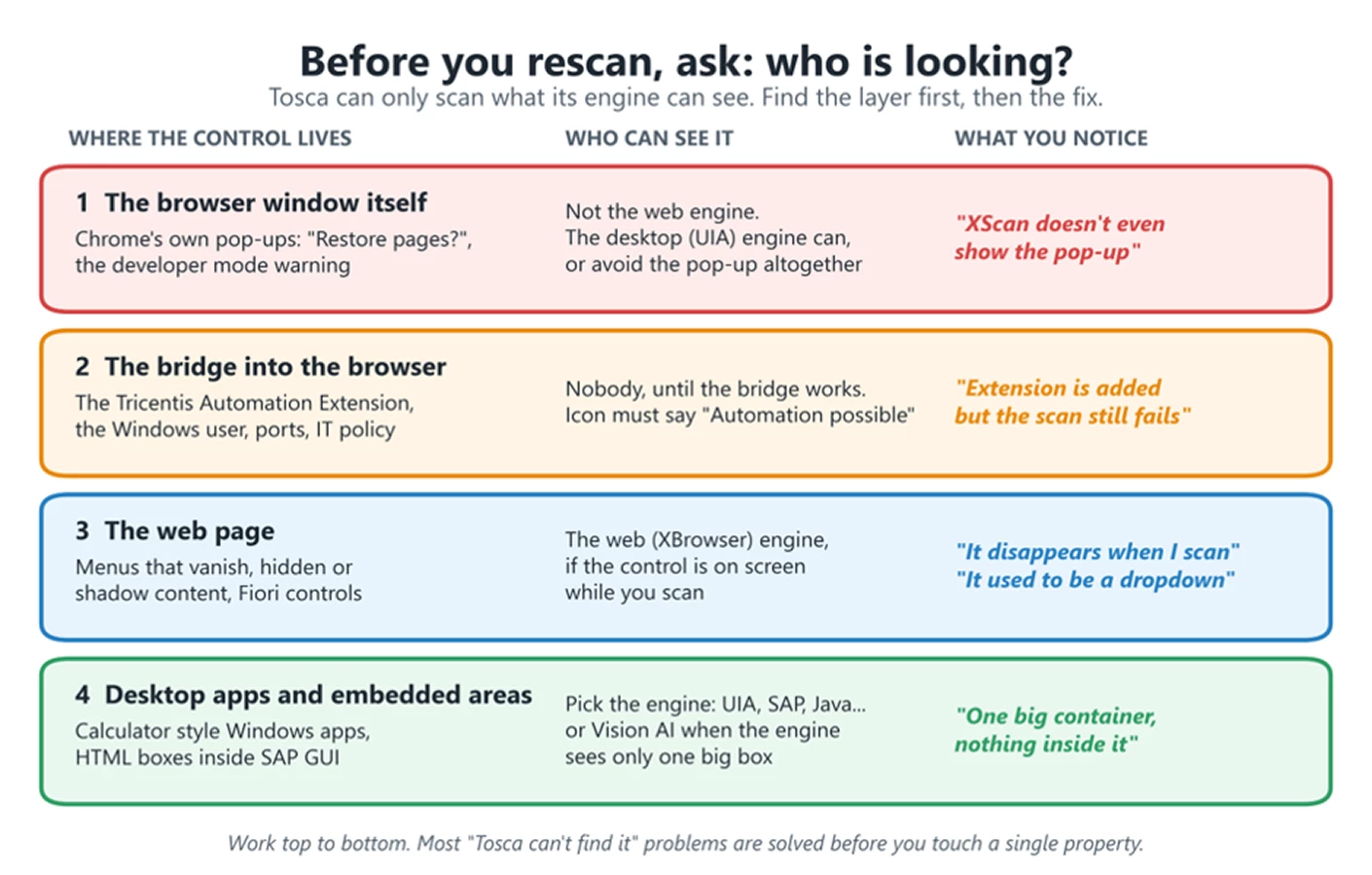
Tosca doesn't. It looks through an engine, and each engine sees its own slice. The web engine sees the web page, through the Tricentis browser extension. The SAP engine sees SAP GUI. The UIA engine sees Windows itself. Vision AI sees pixels.
XScan can only see what its engine can see. If the control lives somewhere that engine can't look, no property in the world will help.
So before I touch a single property, I ask one question: who is looking?
I know the counter-argument, because I used to make it myself. Sometimes a rescan does work. You close a window, scan again, and there it is.
That's fair. But look at what actually changed. The pop-up closed, the menu happened to stay open, Chrome happened to start under the right user. The rescan didn't fix anything. Something in a different layer moved, by luck. And luck is not something you can put in a regression suite.
“A rescan that works by luck will fail by luck too.”
That Chrome pop-up isn't on the page, so Tosca can't see it
Here's a classic. Chrome gets closed forcefully, say by a cleanup step or a script that kills the process. The next time it opens, it shows the "Restore pages?" bubble. You start XScan to scan it and close it. Nothing shows up.
Here is the part people miss. That bubble is not part of the web page. Chrome draws it on its own window, around the page. The web engine looks at the page through the extension, so it is blind to anything the browser itself draws. The same goes for Chrome's warning about developer mode extensions and other browser-level prompts.
There's a difference between:
· A control the page shows you, and
· A control the browser shows you.
The first is a job for the web engine. The second needs another way in, and you have two:
1. Switch engines. In XScan's Select Application window, right-click the Chrome window, choose UIA, and scan it as a Windows control. The desktop engine can see what the web engine can't.
2. Stop it from appearing. For Restore Pages, the cleanest fix I know is starting Chrome in incognito mode with TBox Start Program. Incognito doesn't remember the previous session, so there is nothing to restore and no bubble.
You may come across a workaround online that edits Chrome's preference file and makes it read-only. I wouldn't. You are changing how the browser saves its own settings, with side effects that are hard to predict, just to hide a symptom.
Note: If you go the incognito route, open the extension details and switch on "Allow in incognito". Otherwise you have just swapped one problem for another.
The extension is installed, but Tosca and Chrome still aren't talking
This is the one I hear most often. The extension is added. The scan picks up one or two objects, then throws an error or Tosca hangs.
The extension is a bridge between Tosca and the browser. If the bridge is down, the web engine sees nothing, however good your properties are.
A common suggestion is to run both Tosca and the browser as Administrator. It sometimes works, but for the wrong reason. The Tricentis documentation is more precise: the browser has to run in the same user context as Tosca. If Chrome was started under a different user, say by a script, a scheduler or "Run as different user", the two are not talking properly. Admin or not is beside the point. Same user is the point.
Here is what I check on the bridge, in this order:
1. Click the Tosca icon next to the address bar. It should say "Automation possible". If it doesn't, stop here. Nothing else matters yet.
2. Tosca and the browser run as the same Windows user. The Details tab in Task Manager shows the user name in seconds.
3. The right extension is in the right browser. The Chrome extension in Chrome, the Edge extension in Edge. Swapping them is an easy mistake, and it gives you "Connection to the application lost".
4. Only one version of the extension is installed, and it matches your Tosca version.
5. In the extension details, "Allow access to file URLs" is on, and "Allow in incognito" too if you test in incognito.
6. The extension is still there next week.
Note: That last one catches a lot of people. In many companies, a group policy quietly removes browser extensions it doesn't recognise. If your scans worked on Monday and failed on Thursday with nothing changed on your side, check this first. The fix is a forced install through policy, which means a conversation with your IT team, not another rescan.
It's there when you look, and gone when Tosca looks
The menu that closes the moment you scan. You open a dropdown or hover over a menu, start XScan, and by the time the scan window is up, the menu has gone. It is on the page. Just not while Tosca is looking.
Chrome and Edge can help here, because they can pretend the page still has focus:
1. Open DevTools (F12) and go to the Elements tab.
2. Press Ctrl + Shift + P and type focused.
3. Select Emulate a focused page.
4. Leave DevTools open, open your dropdown, then start XScan.
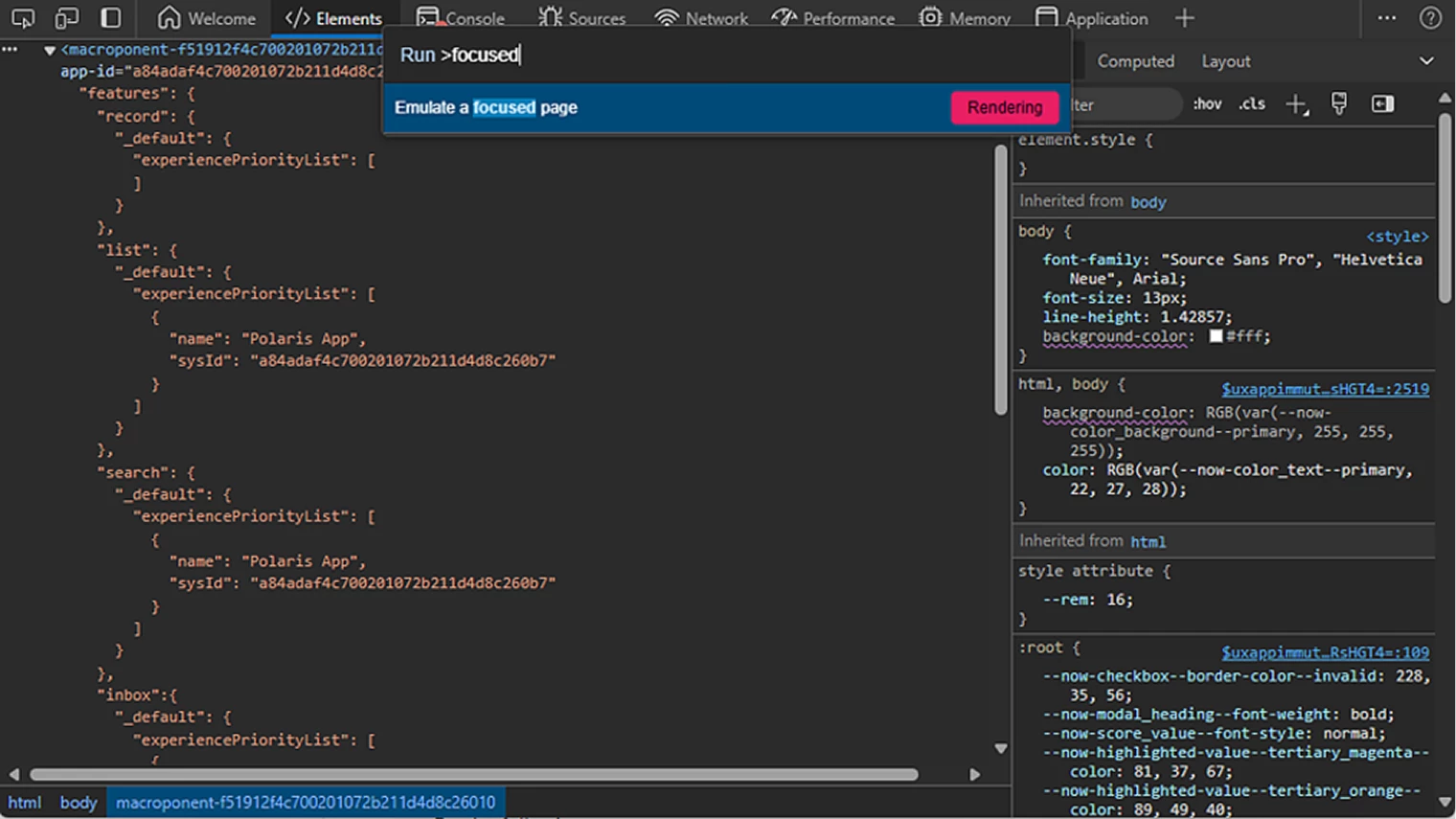
On newer Tosca versions, the extension's right-click menu also has Freeze Page, which does a similar job without DevTools.
The control that only vanishes when the extension is on. Some pages check whether their shadow DOM methods have been tampered with. The extension's helper that opens closed shadow DOMs can make those pages render differently, and controls disappear. There is a setting to switch that helper off for specific URLs, "Disable Shadow Dom Unlocker injection on pages". Again, nothing to do with properties.
The dropdown that now comes in as an input. A colleague asked me about a Fiori dropdown that used to scan as a dropdown and suddenly came in as an input, so they could no longer pick a value.
I haven't reproduced this one myself, so treat it as where I would look first, not as a confirmed fix. In the Tricentis list of how Fiori controls appear in XScan, an Input shows up as a TextBox, while a ComboBox is its own type. Inputs that come with a value help, the little list icon, can be opened with {OpenList}. When the type changes overnight, the app has often changed which UI control it uses. Tosca is reporting what it sees, honestly.
The engine didn't get worse. The thing it is looking at changed.
Same screen, different engine, a completely different view
For Windows applications like Calculator, the engine to reach for is UIA, which is built on Microsoft UI Automation. Two things worth knowing:
· If XScan lists lots of apps you never opened, that is Windows running background apps. Turning them off in the Windows privacy settings cleans the list.
· If UIA shows controls down to a point and then nothing below it, look at the UIA engine setting StopAtThumb. Setting it to False lets the scan go deeper.
My favourite example of "who is looking" is in SAP. Some SAP GUI transactions have web content embedded inside them. Scan with the SAP engine and that whole area is one container called SAP.HTML.Control. Raise the filter to maximum and still nothing appears inside it.
The SAP engine isn't broken. It simply can't see into a web page.
There are two ways in. One is a WebDriver scan through a debug port. The other is Vision AI, which reads the screen visually. Right-click the SAP GUI window, pick Vision AI instead of the SAP engine, and teach it the control by marking it along with a couple of nearby labels as anchors.
Same screen. Same control. A different engine, and suddenly you can see inside the box.
“One big box with nothing inside is not a broken scan. It is the wrong pair of eyes.”
Note: Which embedded context you pick depends on your SAP setup. Tricentis documents an "Internet Explorer Embedded" HTML context - https://docs.tricentis.com/tosca-2026.1/en-us/content/engines_3.0/sap/sap_modules.htm, and for SAP NWBC 7.70 onward, where Edge is the embedded browser, the WebDriver and Debug Port route.
Tosca found it today. Will it find it tomorrow?
Only now do properties matter. And the Tricentis best practice is refreshingly clear: every identifier has to pass two tests.
Unique: it finds exactly one control.
Stable: it finds that same control in every run, not just today.
The line that stuck with me is the worst case it describes: an identifier that only works once, during the scan. It looks perfect in XScan and fails in the very first run.
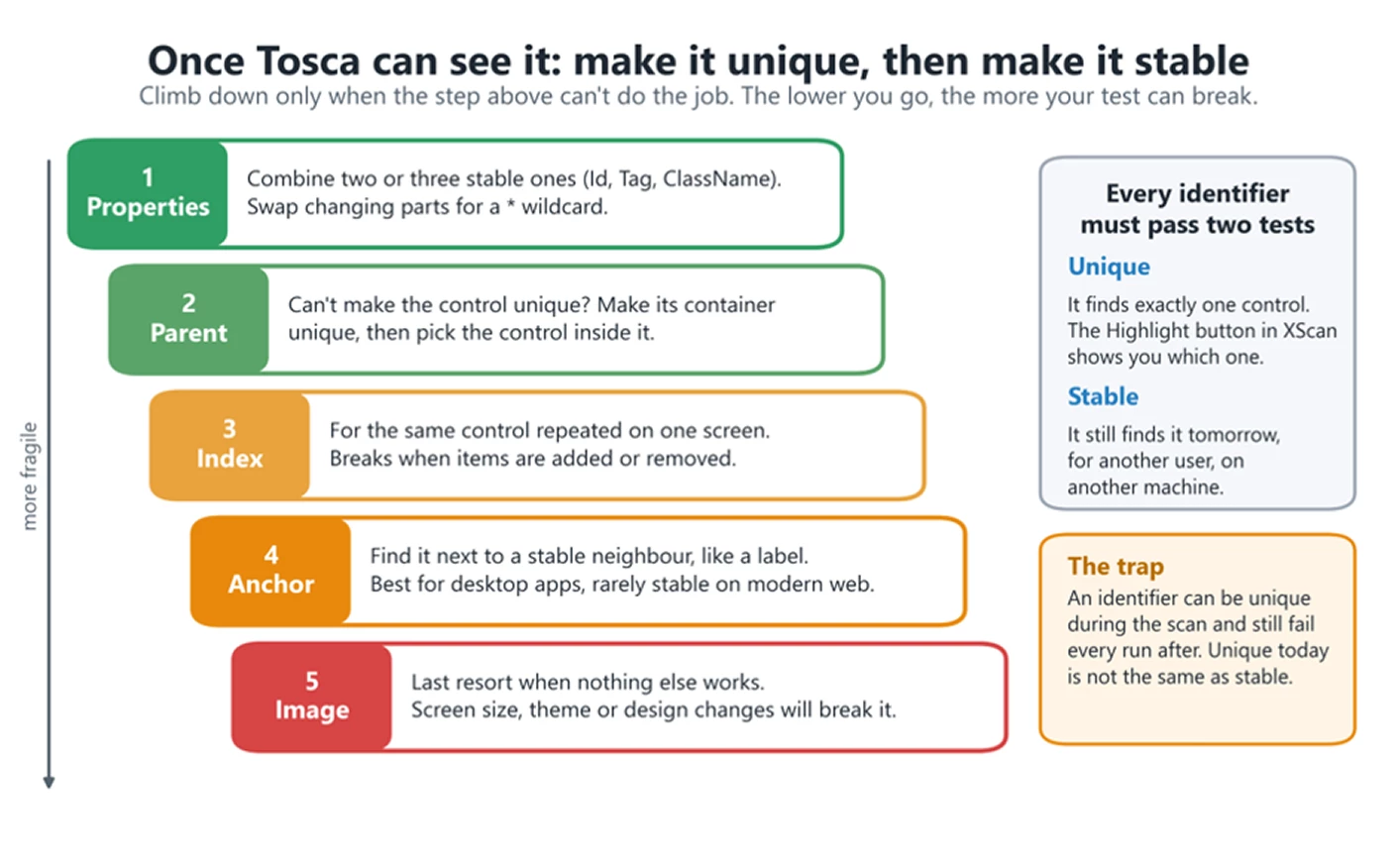
The order I follow:
1. Properties first. Combine two or three stable ones. If a value carries a session number, like a counter at the end or a Caption with a search term, replace the changing part with a * wildcard. Avoid generic names like Button1, and avoid the text inside text boxes, because it will change.
2. Parent next. If the control can't be made unique, make its container unique and pick the control inside it. The right parent isn't always the one directly above. Turn on Highlight Selection in the Advanced view and walk up the tree. XScan shows you which part of the screen each node covers.
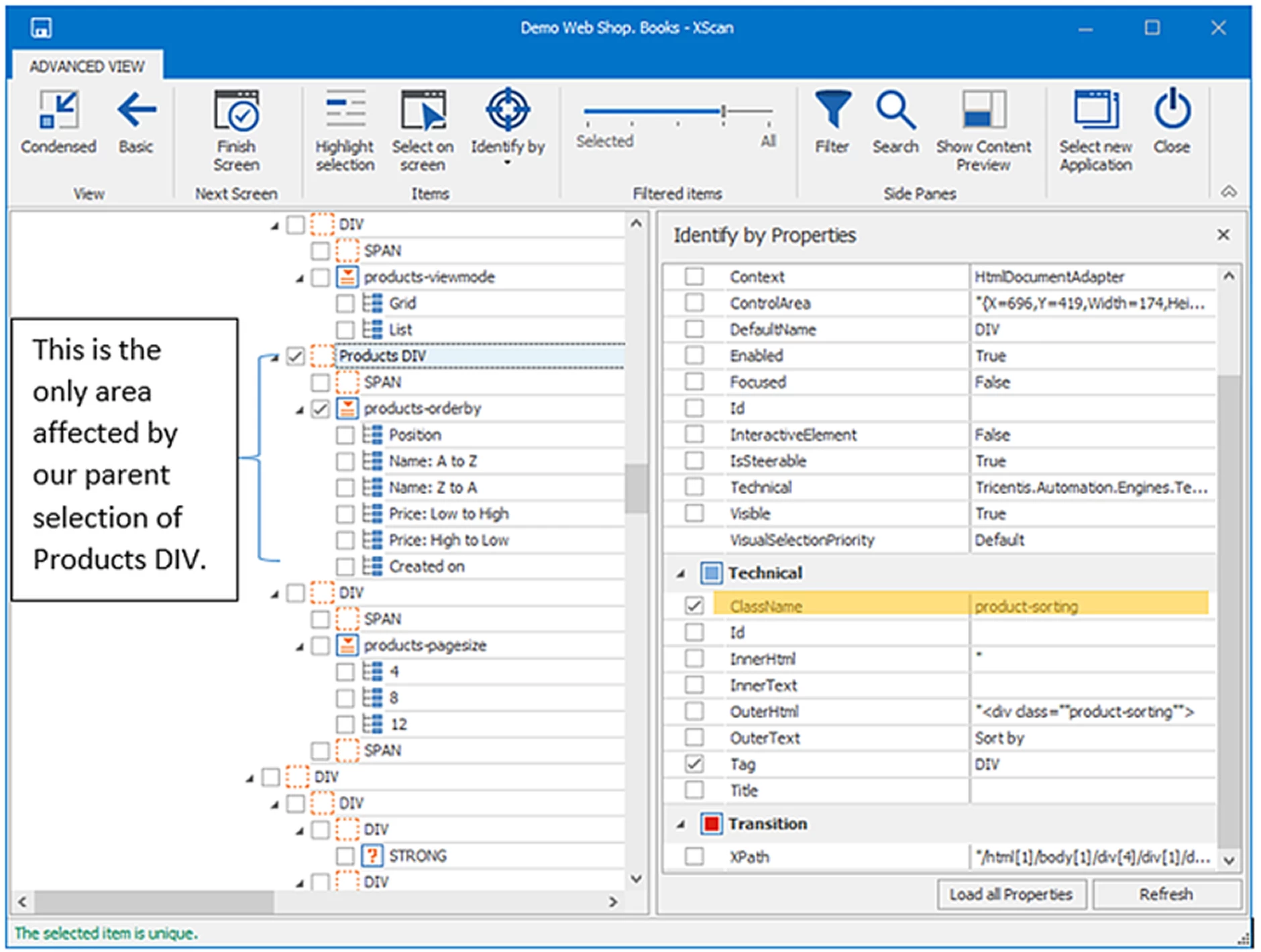
3. Index for the same control repeated on one screen, accepting that it moves when items are added or removed.
4. Anchor to a stable neighbour, like a label. This works best in desktop applications, because stable anchors are hard to find on modern web pages.
5. Image when nothing else works. Expect it to break when the screen size, theme or design changes.
Note: One stability trap has nothing to do with the control. Some users have higher permissions and see controls and properties that others don't. Scan with the same permissions as the Windows user who will run the tests. Otherwise your module is built for a screen your test will never see.
What I check now before I rescan anything
It takes about a minute, and it has saved me far more than that.
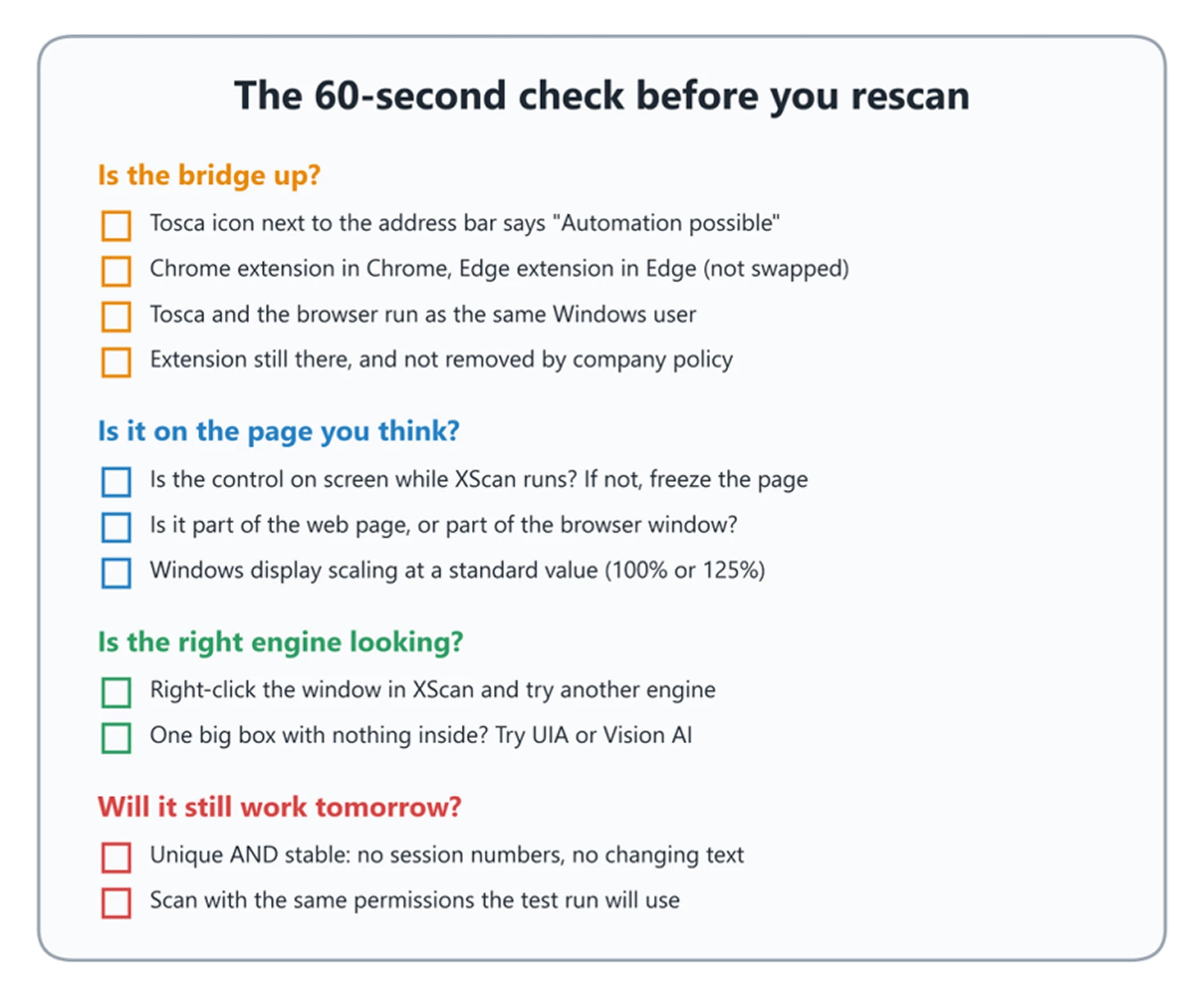
1. Is the bridge up? "Automation possible", the right extension in the right browser, the same Windows user, not removed by policy.
2. Is it on the page you think? Is the control on screen while XScan runs? Is it part of the page or part of the browser window? Is Windows display scaling at a standard value like 100% or 125%?
3. Is the right engine looking? Right-click the window in XScan and try another engine. One big box with nothing inside means the engine can't see in.
4. Will it still work tomorrow? Unique and stable, no session values, the same permissions as the test run.
Only when all four are a yes do I start playing with properties.
I stopped fixing the control and started fixing the layer
For a long time, my first move with any scan problem was the same as everyone's. Open the module, tick and untick properties, add an index, rescan. Sometimes it worked, and I couldn't always tell you why.
What changed was not a new trick. It was a different first question. Not "what is wrong with this control?" but "can the thing that is looking even see it?" Most of the time, that question alone points me at the right layer, and the fix becomes obvious.
There's a difference between:
· Knowing the fix, and
· Knowing which layer the fix belongs to.
The first one gets you through today. The second one gets you through the next ten problems you haven't met yet.
So here is my version of an old saying.
Old: "Don't shoot the messenger."
New: "Before you blame the control, check who is looking."
Have you had a scan problem that turned out to be in a completely different layer than you expected? I would love to hear it in the comments.
Happy learning.

