


Ever had a tiny app change break a ton of tests? Frequent updates can turn test maintenance into a headache. This week’s tip spotlights Tosca’s AI-powered impact analysis – a smart way to pinpoint which tests matter most after each change. Instead of rerunning or fixing everything, you’ll focus on what’s actually impacted. The result? Less test bloat, faster feedback, and happier QA teams.
What is AI-Powered Impact Analysis?
In a nutshell, it’s Tosca’s capability to automatically analyze changes in your application and identify the high-risk areas and tests. Tosca uses predictive analytics on things like code changes, commit history, and past defects to figure out which tests are most likely to uncover new issues. In other words, the tool asks: “Given what changed, which tests should we run (or update) first?” This smart filtering is often called risk-based test optimization. By running the right tests first, you get quick feedback on critical parts of your app – what used to take hours can shrink to minutes. It’s like having an experienced QA assistant that tells you where to look after each code change.
Why Use It?
-
Fewer, Smarter Tests: Stop running dozens of unnecessary tests. Tosca’s risk-based optimization can eliminate ~40% of tests you don’t need while still boosting risk coverage of your application above 90% You focus on what matters instead of checking every trivial thing.
-
Faster Feedback: By prioritizing critical tests, you catch important bugs sooner. Tosca analyzes the impact and lets you run high-priority tests first, so feedback that used to take hours now comes in minutes. This means quicker validation of key features while longer tests run in the background.
-
Less Maintenance Effort: Running only impacted tests means fewer scripts to update when things change. Plus, Tosca’s AI can even auto-self-heal minor UI changes (for example, if a button ID or selector changes, Tosca can auto-update the locator). This reduces those “tests failed due to tiny UI tweak” false alarms. Your team spends more time testing new features, not constantly fixing old tests.
Step-by-Step: Using AI Impact Analysis in Tosca
-
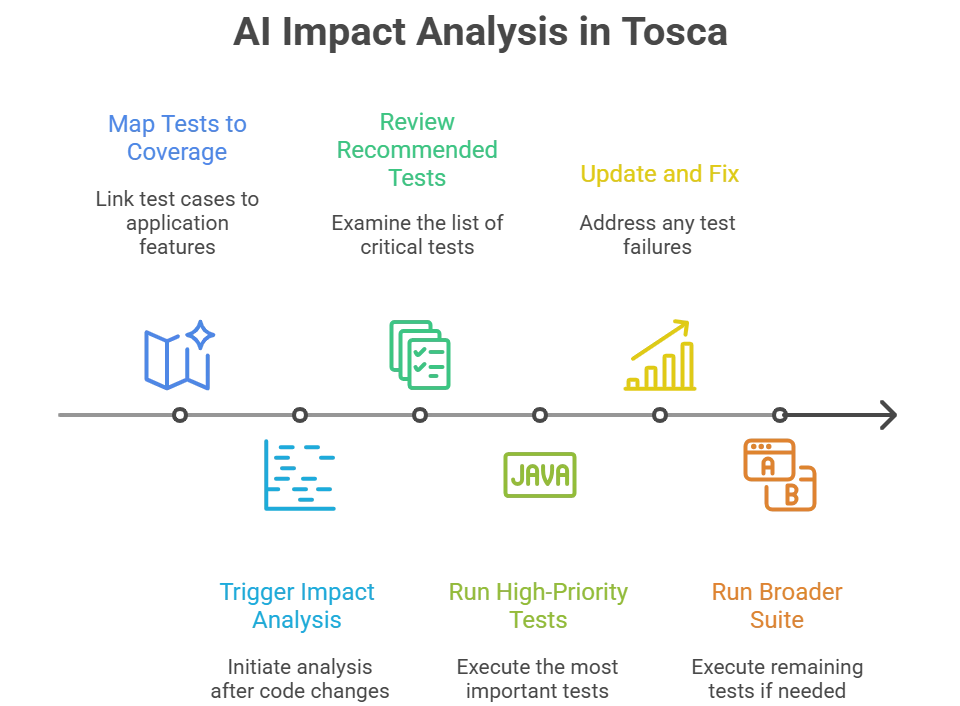
Map Your Tests to What They Cover: Make sure your Tosca test cases are linked to modules or requirements that reflect the app’s features. This traceability helps the AI know which parts of the application each test touches. If possible, assign a priority or risk level to each requirement (e.g. mark core features like Checkout or Login as high risk). This setup lays the groundwork for Tosca to analyze impacts effectively.
-
Trigger an Impact Analysis After Changes: Whenever developers check in new code or a fresh build is ready, use Tosca’s AI-driven analysis to assess the impact. In practice, this could mean running Tosca’s built-in risk analysis or using Tosca’s integration with change analysis tools. (For example, Tricentis’s integration with SeaLights can analyze code changes and intelligently pinpoint which tests need to run based on what changed.) Essentially, Tosca examines the update and figures out which tests are affected or most likely to catch a bug.
-
Review the Recommended Tests: Tosca will present a focused list of test cases that should be executed (or reviewed) first. Instead of running your entire suite of say 500 tests, you might see that only 30 are deemed critical for the recent changes. Pay special attention to these. (Recent Tosca enhancements have made this even sharper for enterprise apps – e.g. smart impact analysis for Salesforce and SAP updates uses AI to pinpoint exactly what needs testing to ensure a zero-defect release.)
-
Run the High-Priority Tests First: Execute the tests that the impact analysis flagged. This will quickly verify if the most important functionalities still work after the change. You’ll catch any show-stopper bugs right away, without wasting time on tests unrelated to the update. Think of it as hitting the “fast-forward” button to the most crucial results.
-
Update and Fix as Needed: If any priority test fails, determine why. If it’s a genuine bug, congratulations – you found it early! Notify the team and log a defect. If the test itself broke (for example, maybe a field ID changed causing a false failure), update the Tosca module or test step to align with the new application behavior. Tosca’s self-healing may have already handled small locator changes automatically, but larger logic changes might require you to adjust the test model. By focusing only on the impacted tests now, you’re fixing what truly needs fixing instead of chasing dozens of irrelevant failures.
-
Run the Broader Suite (as needed): After the critical tests pass, you can run the rest of your regression suite for peace of mind. However, you’ll often find that there’s no need to re-run everything—Tosca’s AI has covered your bases. You’ve addressed the high-risk areas, which gives confidence that the application is stable. Any remaining tests can be run in batch or as part of your normal cycle, knowing that the urgent risks are already mitigated.
Final Thoughts
By leveraging Tosca’s AI-powered impact analysis, even QA teams new to Tosca can work smarter, not harder. You’re aligning testing with actual risk: when something changes, the AI guides you to the tests that matter most. This not only saves time and reduces maintenance effort, it also improves your chances of catching serious issues before they hit production. Give this approach a try the next time your application updates – your future self (and your test suite) will thank you for it!