


Functional testers of Oracle applications – whether Oracle Fusion Cloud or E-Business Suite – often face tight timelines and frequent UI changes. This week’s tip shows a practical way to use Tricentis Tosca’s AI-powered capabilities to accelerate and strengthen your functional testing of Oracle apps. We’ll focus on Vision AI, Tosca’s AI engine, and how it lets you create and run tests earlier and more resiliently. Let’s dive in!
Test Oracle Updates Early Using Vision AI
Oracle Fusion updates roll out quarterly, and you typically get only a short window (about two weeks) to test changes in a staging environment. But did you know you can start building your automated tests weeks earlier? With Tosca’s Vision AI, you can create test cases from Oracle’s UI prototypes (the previews in Oracle’s Upgrade Readiness documentation) before the actual update is live. In simple terms, Tosca’s AI can look at a screenshot or mock-up of the new Oracle UI and identify buttons, fields, and labels just like a human would, allowing you to design tests in advance. This AI-driven approach uses visual clues (like field labels, types, and positions) instead of hard-coded properties, so your tests are more future-proof. Here’s a step-by-step guide:
-
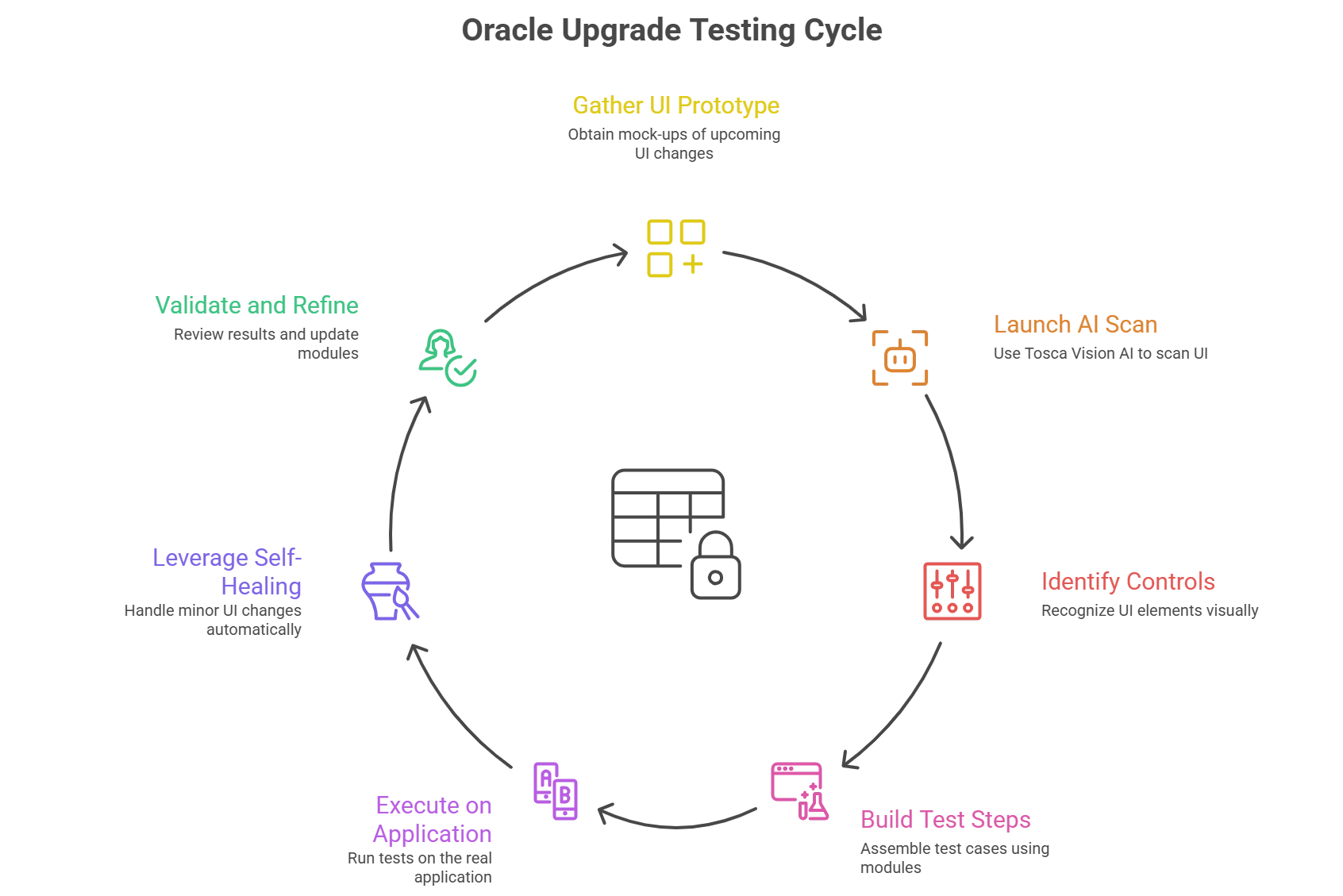
Gather the Oracle UI Prototype: First, obtain the Oracle Upgrade Readiness document or any mock-up of the upcoming Oracle app changes. For Oracle Fusion Cloud, these documents usually include screenshots or UI mock-ups released about six weeks before the update. Identify the new screens or changed elements that affect your business process (e.g. a new “Payment Terms” field on an invoice screen).
-
Launch Tosca Vision AI Scan: Open Tricentis Tosca and go to the Module scanning option. Select the Vision AI mode for scanning (this tells Tosca to use its AI/computer vision engine). Now open the Oracle prototype image on your screen (you can use an image viewer or even a PDF in a window). Point Tosca’s scanner to that window. Essentially, you’re showing Tosca the picture of the application UI you want to automate.
-
Identify and Model Controls Visually: Click on the fields, buttons, and other controls in the prototype image using Tosca’s scanning tool. Tosca’s Vision AI will recognize UI elements based on their appearance and labels, even from a static image. For example, if the screenshot has a field labeled “Supplier Name” and a dropdown for “Status,” simply click those areas – Tosca will capture them as automation modules (basically, it learns “there is a text box for Supplier Name” and “there is a dropdown for Status”). Tosca’s AI is smart enough to infer the type of control (text field, dropdown, button, etc.) from the visual context. You don’t need any code or detailed technical info at this stage – just the picture and labels are enough for Tosca.
-
Build Your Test Steps: Now that Tosca has created modules for the prototype screen, you can assemble your test case. In Tosca Commander, add test steps that use those modules – for instance, enter “ACME Corp” into the Supplier Name field, select “Active” from the Status dropdown, and click the “Save” button (if those were part of the new UI). Essentially, you are writing your test workflow against the prototype. You can also input expected results or verification steps if applicable (e.g., verify a confirmation message). At this point, you have a full automated test case defined before the real application is even available!
-
Execute on the Real Application: When Oracle releases the update to your test environment (e.g. the Fusion staging environment two weeks before go-live), it’s time to run the automated test. Tosca will drive the real application using the test steps you created. Thanks to Vision AI, Tosca will match the fields in the live app with those from the prototype by using their labels and visual features, not brittle IDs or XPaths. Even if the development team changed the layout or moved things around, your test still works. For example, one tester built a Vision AI test from a mock-up and later ran it on a live form where the fields were in a different order – Tosca still found each field and filled them correctly by focusing on the field names and types. This means less rework adjusting your tests when the UI goes live.
-
Leverage Self-Healing for Changes: It’s common for minor changes to occur between the prototype and the final application. Perhaps a button labelled “Next” in the mock-up is now called “Continue,” or an input field’s colour or position changed. Tosca’s AI has self-healing capabilities to handle this. It will try to intelligently locate the intended element if it’s slightly changed, and it can even alert you to any object that moved or was renamed. For instance, if “Next” became “Continue,” Tosca’s Vision AI can still identify it’s the same button and click it. As a tester, you might just get a notification or prompt to confirm the change, and then Tosca updates the module automatically. This drastically reduces maintenance effort after Oracle upgrades – you spend less time fixing broken tests and more time analysing results.
-
Validate and Refine: After execution, review the test results. If any steps failed because the application differed too much from the prototype, you can easily update the module by rescanning that part of the live application (still using Vision AI). In most cases, though, you’ll find that the test worked on day one, or only minor tweaks were needed. You have effectively gained extra weeks to test and can discover defects earlier, well before the official release. This means higher quality and no last-minute surprises.
Why This Helps Functional Testers
By using Tosca’s Vision AI for Oracle applications, QA teams can shift testing earlier and handle changes smarter. You no longer have to wait idly for a new Oracle update to be deployed before starting test automation. Instead, you begin with what’s available (prototypes and mock-ups) and let AI bridge the gap until the real system is up. This approach speeds up testing cycles and gives you more buffer to find and fix issues. Moreover, the AI-driven recognition makes your tests more resilient to change, an invaluable feature for Oracle Fusion’s frequent updates or even Oracle EBS customizations that might evolve over time. In short, you get faster test creation, painless maintenance, and confidence that your critical business processes (order management, financials, HR workflows, etc.) will keep running smoothly after an Oracle update.
In practice: Imagine an Oracle Fusion quarterly patch introduces a new form or changes a field. With Vision AI, you could have automated the testing of that form a month in advance using Oracle’s previews. When the patch arrives, you execute your pre-built tests and immediately ensure everything still works. If something small changed, Tosca self-heals the test on the fly. This means on Day 1 of the update, your regression tests are ready to roll, and you can deliver a stable update to users with confidence.
By embracing AI in tools like Tosca, functional testers can work smarter, not harder. Give this tip a try during your next Oracle release cycle; you’ll likely find that AI-powered testing saves time and reduces hassle, all while keeping your Oracle applications running flawlessly. Happy testing!