

Getting started with Model Context Protocol (MCP) for NeoLoad: What it is, why it matters, and how to use it today
MCP is an open standard that lets AI assistants (like Claude, Copilot, Cursor) securely “see” and act on your NeoLoad Web data and APIs—so you can ask natural‑language questions, launch runs, compare results, and even pull in CI/CD and APM context without custom glue code. NeoLoad’s MCP server is available in the next‑gen NeoLoad Web experience, with setup driven by an API token and role‑based access.
What is MCP? and why performance engineers should care?
Model Context Protocol (MCP) is an open, vendor‑neutral standard for connecting AI assistants to tools and data. Instead of one‑off, model‑specific integrations, MCP defines a universal way for AI agents to discover tools, authenticate, and call functions exposed by a server (for example, the NeoLoad Web API). Practically, this means your assistant can list workspaces, start tests, fetch metrics, and compose findings across systems.
The standard has gathered momentum across the ecosystem (IDEs, cloud platforms, enterprise tools), making it a safe bet for teams who want AI‑driven workflows without vendor lock‑in.
What NeoLoad’s MCP actually enables
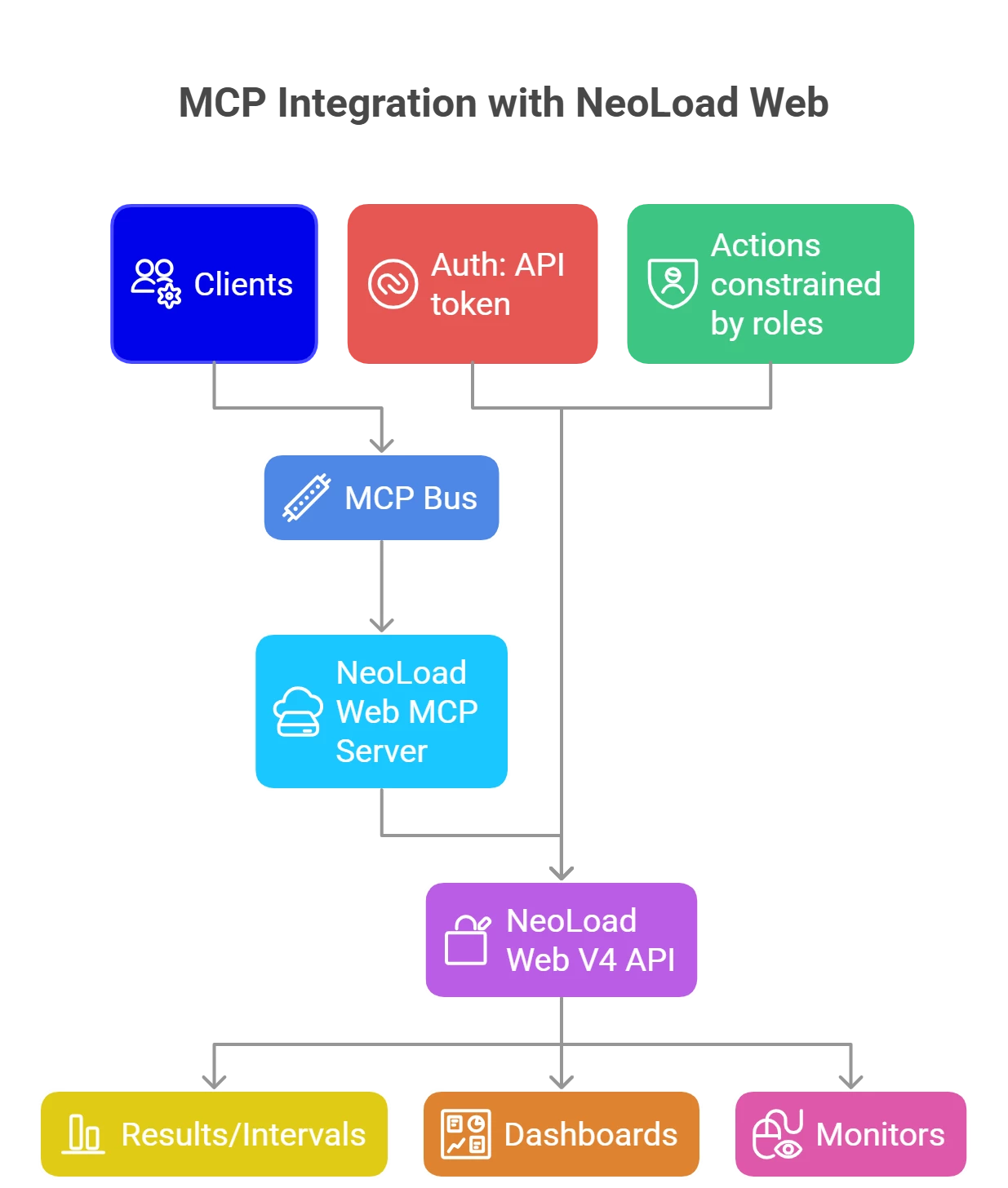
With NeoLoad Web MCP, you can:
- Discover workspaces and tests via natural language
- Execute tests and monitor runs
- Retrieve results, compare runs, and generate reports
- Manage dashboards and pull result monitors (in recent updates)
Supported clients today include Claude Desktop and Cursor (others may work if they speak MCP). Connection uses your NeoLoad Web API token and the region‑specific MCP endpoint. Your RBAC permissions constrain what the assistant can do—exactly as if you were calling the APIs.
From the NeoLoad team’s guidance, this MCP capability is part of the next‑generation NeoLoad Web (initially SaaS), with on‑prem availability following later; it can be disabled by default and enabled on request for SaaS tenants.
Security model at a glance
• Uses your API token; actions are limited by your NeoLoad RBAC.
• Align with your org’s AI governance before enabling.
• Off by default in SaaS; request enablement via your account team.
A 5‑minute “hello world” setup
- Get a NeoLoad Web API token: User menu → Profile → Access tokens → Generate.
- Add the MCP server to your assistant (example endpoints are documented per region) and include your token in auth settings.
- Verify by asking: “Show me all available workspaces.” You should see a list; if not, check token validity, region URL, and whether MCP is enabled for your tenant.
Once connected, try: “List recent test results in the OTEL demo workspace and flag any SLA violations.” (Prompts can be conversational; the agent maintains context across follow‑ups.)
Cross‑tool workflows: why MCP shines beyond NeoLoad
The real power appears when you span systems—without bespoke integrations—because multiple vendors now expose MCP servers:
- Azure DevOps MCP (Microsoft): query work items, pipelines, PRs, builds, test plans—usable from VS Code/Copilot, Cursor, Claude.
- Dynatrace MCP (GA): pull live, contextual observability (Grail/Smartscape), run DQL queries, list problems; built for agentic workflows.
- Datadog MCP (Preview): access metrics, logs, traces, monitors, dashboards; Cursor extension support.
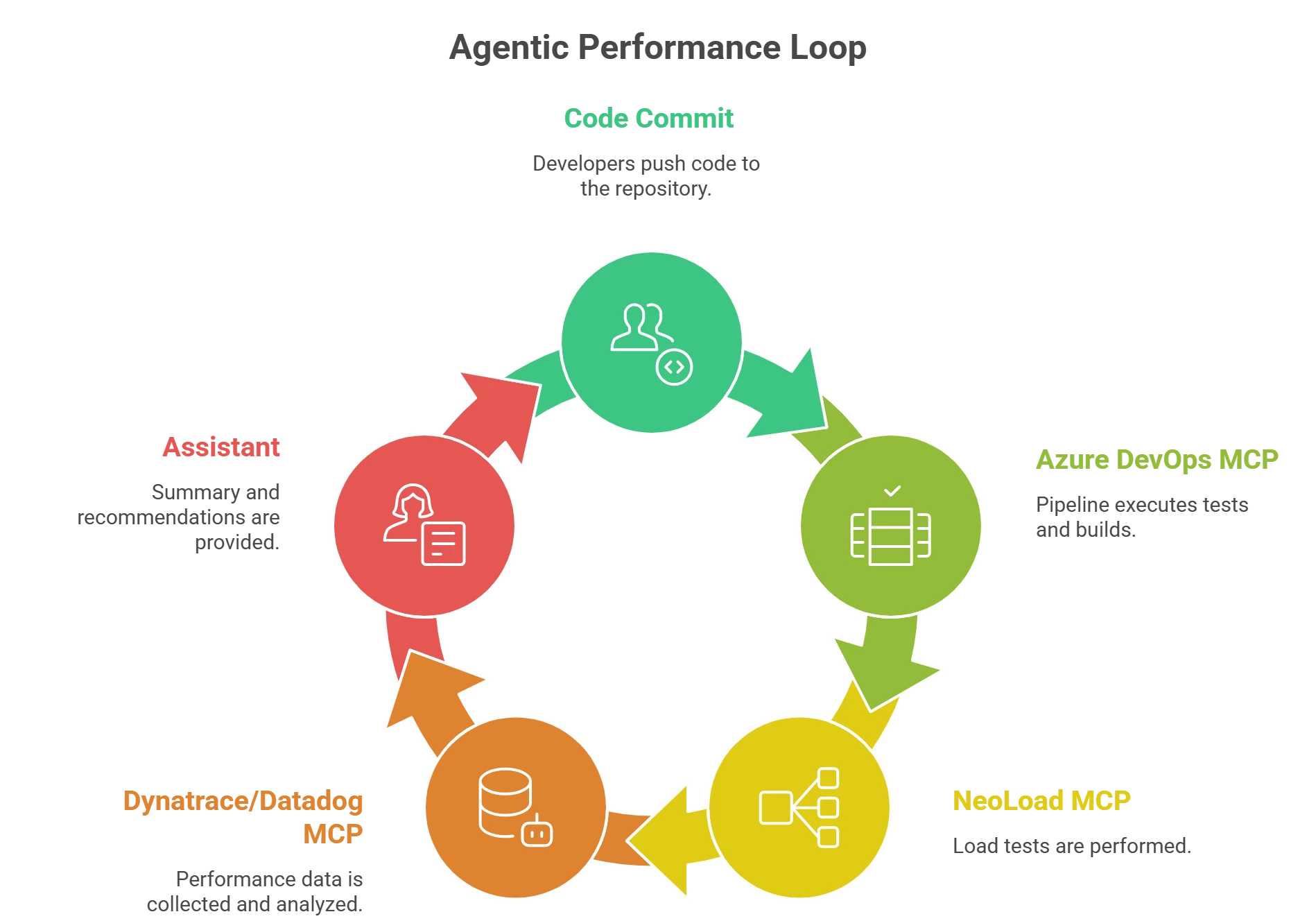
A common workflow you can enable in minutes:
- A code check‑in triggers an Azure DevOps pipeline.
- The pipeline calls NeoLoad to validate performance.
- If regressions appear, your assistant pulls Dynatrace/Datadog signals to correlate with infra/app changes.
- It summarizes the hypothesis and points you to the culprit change—ready for triage or rollback.
Augmented Analysis + MCP: faster from “run” to “reason”
NeoLoad Web’s Augmented Analysis segments runs into color‑coded intervals (stable/unchanged/degrading) based on foundational RED metrics (Rate, Errors, Duration). This dramatically cuts the time to find “the interesting part” of a long test; MCP then lets assistants fetch just those intervals and compare across runs or dashboards. Recent releases added dashboard management and result monitor actions to deepen this loop.
Practical prompt patterns (copy/paste)
- “Are there any NeoLoad tests running right now in my tenant? If yes, show status and ETA.”
- “Open the last two results for the OTEL demo test, summarize differences in error rate and p95 latency, and note any SLA breaches.”
- “Did this test originate from a CI pipeline? If yes, fetch the pipeline steps from Azure DevOps and the associated commit.”
- “Correlate the red interval in this run with Dynatrace problems during that time window; include any new deployments.”
- “Create a NeoLoad Web comparison dashboard with p95 latency and error rate for results 14–16, and share the link.”
Tips and gotchas
- Use least‑privilege tokens. Start with read‑only for analysis workflows; expand only if you need to launch tests.
- Match regions/URLs. Use the correct MCP endpoint for your tenant; a mismatched region is a common setup error.
- Plan governance. Align with your AI governance board before enabling MCP in production tenants.
- Think multi‑agent. As vendors publish more MCP servers, design prompts that coordinate across tools (e.g., “compare build 79 vs 80 and show the first failing interval”).

